
Squarespace schema markup mistakes are more common than most site owners realize, especially when relying on auto-generated structured data. Structured data, often called schema markup, is code that helps search engines understand your content and unlock rich search features.
On Squarespace, structured data is both automatically generated and customizable. But many site owners fall into predictable pitfalls that prevent schema from delivering its SEO value.
In this guide, we’ll unpack the most common Squarespace schema markup mistakes, why they occur, and how to fix structured data errors in Squarespace so your content actually qualifies for rich results and avoids Search Console warnings.
What Is Structured Data and Why Does It Matter?
Before we dive into mistakes, let’s clarify what schema markup does and why it’s useful.
Structured data is a standardized format for describing your content to search engines, usually using JSON-LD format. It provides context about the meaning of your content, such as whether a page is a product, event, article, business, FAQ, or recipe, enabling features like rich snippets in Google search.
JSON-LD (JavaScript Object Notation for Linked Data) is Google’s recommended format because it’s easy to maintain, doesn’t interfere with your HTML layout, and can be tested independently.
Squarespace will add some basic schema automatically, such as Article for blog posts or Organization for site identity, but this built-in markup is often incomplete or overly broad, leading to structured data issues. To better understand how Squarespace generates and structures this markup across different page types, it’s useful to explore a more in-depth Squarespace schema markup understanding before diagnosing structured data errors.
Many Squarespace schema markup mistakes happen not because schema is misunderstood, but because Squarespace’s default structured data doesn’t fully meet Google’s requirements.
Common Squarespace Schema Markup Mistakes and Ways to Fix Them
Even small schema errors can prevent Squarespace sites from qualifying for rich results. Understanding the most common Squarespace schema markup mistakes makes it easier to fix structured data issues before they impact visibility.
Mistake #1: Relying on Incomplete or Auto-Generated Schema in Squarespace
What Happens
This is one of the most frequent Squarespace schema markup mistakes, especially for Local Business and Organization schema. Squarespace outputs default structured data for elements such as LocalBusiness, Organization, WebSite, Article, Products, and Events. However, this automatically generated markup often omits required fields (such as name, address, or telephone) that Google expects for eligibility in rich results, especially LocalBusiness schema. Many users see errors like “Missing field: name” or “Missing field: address” when testing.
Why It Matters
Google’s structured data guidelines specify that required properties must be present for Google to recognize and consider structured data eligible for rich results. If these aren’t present, your schema may be ignored or flagged with errors in Search Console.
How to Fix
For site owners who don’t want to manage JSON-LD manually, an automated schema for Squarespace can help ensure required fields stay complete and aligned with Google’s structured data guidelines as content changes. You cannot directly edit Squarespace’s built-in schema in the editor. But you can supplement or override it with custom JSON-LD:
-
- Test existing markup: Use Google’s Rich Results Test to see what structured data Google detects on a page.
- Add missing fields manually via Code Injection or a Code Block. For example:
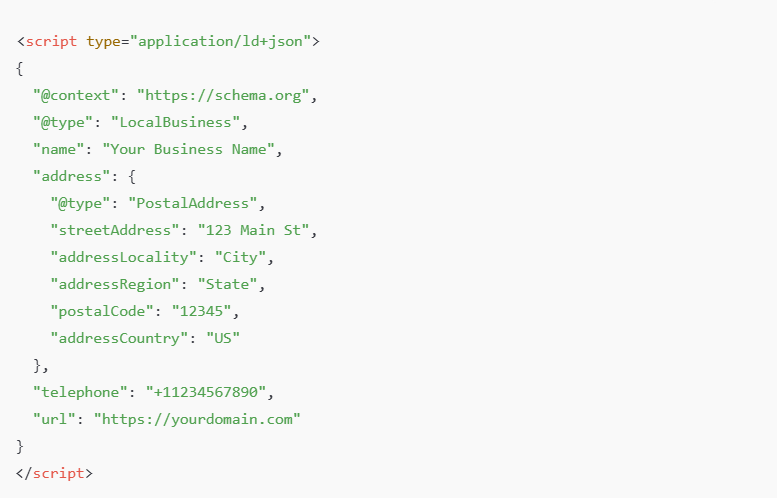
- This code attaches the required properties that Google expects.
- Validate after you deploy: Re-run the Rich Results Test and check Search Console for errors/nudges.
Mistake #2: Missing or Incorrect Publisher Logo in Article Schema
What Happens
If your Squarespace site uses plain text instead of an image logo, the platform may generate Article schema without a valid publisher.logo property. This commonly triggers errors related to the Article or BlogPosting schema.
Why It Matters
For the Article schema, Google expects a properly formatted publisher logo. Missing or invalid logo markup can prevent articles from qualifying for enhanced search features.
How to Fix
Manually add a corrected JSON-LD Article schema that includes a valid image-based publisher logo. This is often best placed in the site footer or on blog post templates to ensure consistency across articles.
Mistake #3: Syntax Errors in JSON-LD
What Happens
Structured data is unforgiving. Missing commas, unclosed braces, incorrect quotation marks, or small formatting errors can break the entire JSON-LD block. This often results in “JSON parse error” or “Unparsable structured data” warnings.
Why It Matters
If Google can’t parse your JSON-LD, none of the structured data on the page will be processed, which means you will lose eligibility for rich results.
How to Fix
Always wrap JSON-LD in the correct script tag:

Validate your schema using Google’s Rich Results Test or the Schema Markup Validator before publishing to catch errors early.
Mistake #4: Incomplete Business Information in LocalBusiness Schema
What Happens
If you remove or partially fill out business details in Squarespace’s Business Information settings, the platform may still output LocalBusiness schema, but with empty or invalid fields.
Why It Matters
Missing required properties, such as business name, address, or phone number, can lead to persistent structured data errors and reduce trust in your site’s schema.
How to Fix
Ensure the Business Information panel in Squarespace is fully completed. If that’s not possible, manually add a proper JSON-LD LocalBusiness schema that includes all required properties.
Mistake #5: Using the Wrong Schema Type for the Page
What Happens
Applying schema types that don’t align with the actual page content, such as Product schema on a homepage or FAQ schema on non-FAQ pages, leads to misaligned structured data.
Why It Matters
Google may ignore schema that doesn’t accurately represent the main content of the page, reducing your chances of appearing in rich results.
How to Fix
Match the schema type to the primary intent of each page. Use Article schema for blog posts, Product schema for product pages, and FAQ schema only on pages that visibly display FAQs.
Mistake #6: Conflicting or Excessive Schema Markup
What Happens
Adding multiple schema blocks for the same page, such as duplicate Product schema or multiple FAQ schemas, can create conflicts. This often happens when custom JSON-LD is added on top of Squarespace’s native markup or plugin-generated code.
Why It Matters
A conflicting or redundant schema can confuse search engines, causing them to ignore all markup on the page rather than choosing the correct version.
How to Fix
Use one primary schema type per page and remove unnecessary or duplicate markup. Avoid layering multiple plugins or scripts that generate overlapping structured data.
Mistake #7: Schema Markup That Doesn’t Match Visible Content
What Happens
Structured data sometimes includes information that users can’t see on the page, such as hidden prices, ratings, or FAQs that aren’t displayed.
Why It Matters
Google’s structured data guidelines require that the schema accurately reflect visible page content. Mismatches can cause the schema to be ignored or flagged.
How to Fix
Ensure that any information included in structured data, such as reviews, prices, or FAQs, is also clearly visible to users on the page.
Mistake #8: Outdated or Stale Structured Data
What Happens
When product prices, service details, or FAQ content change, the schema markup is often forgotten and left outdated.
Why It Matters
An outdated schema can mislead both search engines and users, resulting in inaccurate search results and a potential loss of trust.
How to Fix
Regularly audit your structured data and update it whenever page content changes. Make schema reviews part of your routine SEO maintenance.
Mistake #9: Placing Schema in the Wrong Location
What Happens
Page-specific schema is sometimes added globally through site-wide code injection, causing irrelevant schema to appear across multiple pages.
Why It Matters
This can dilute relevance, create duplication issues, and trigger structured data warnings in Search Console.
How to Fix
Use page-level code injection or individual code blocks for page-specific schema. Reserve global injection for organization-level markup only.
Mistake #10: Forgetting to Validate Structured Data
What Happens
Many users assume that because they used a generator or tool, their schema is correct, and skip validation entirely.
Why It Matters
Even small errors can prevent structured data from being recognized, and issues may go unnoticed without proper testing.
How to Fix
Always validate your structured data using Google’s Rich Results Test or the Schema Markup Validator before and after publishing.
Testing & Best Practices
While Google’s testing tools are essential, maintaining structured data manually can become time-consuming as your site grows. This is where a Squarespace schema app can help automate validation, updates, and error prevention across pages.
Tools You Should Always Use
-
-
- Google Rich Results Test – checks what rich results your structured data is eligible for and flags errors.
- Schema Markup Validator – validates JSON-LD syntax.
- Google Search Console Enhancements Report – shows structured data errors across your site.
-
Best Practices for Fixing Schema in Squarespace
-
-
Start by auditing existing structured data
Before making changes, test your pages using Google’s Rich Results Test to understand what schema Squarespace is already generating and where errors or warnings exist. This prevents unnecessary duplication or conflicts.Use JSON-LD as your primary schema format
Google recommends JSON-LD because it is easier to implement, maintain, and validate without interfering with page layout. Avoid mixing multiple formats like Microdata or RDFa on the same page.Match schema types to page intent
Apply structured data only when it clearly represents the main content of the page. For example, use Article schema on blog posts, Product schema on product pages, and FAQ schema only where FAQs are visibly displayed.Complete all required and recommended properties
Ensure that mandatory fields such as name, image, url, and address (for LocalBusiness) are present. Including recommended properties improves eligibility for rich results and reduces validation warnings.Keep structured data aligned with visible content
All information included in the schema, such as prices, reviews, FAQs, or business details, should be visible to users on the page. Mismatches can cause Google to ignore the markup.Avoid duplicate or conflicting schema blocks
Be cautious when adding custom JSON-LD alongside Squarespace’s auto-generated markup. Use one primary schema type per page and remove redundant or overlapping structured data.Place schema in the correct location
Use page-level code injection or code blocks for page-specific schema. Reserve global code injection for organization-level schema like WebSite or Organization markup.Update schema whenever content changes
If you update pricing, services, FAQs, or business details, review and update the structured data accordingly to prevent outdated or misleading schema.Validate before and after publishing
Always test your structured data after implementation and again after publishing to confirm that Google can parse and recognize it correctly.Monitor Search Console regularly
Keep an eye on the Enhancements and Structured Data reports in Google Search Console to catch new errors early and maintain long-term schema health
-
Quick Summary Table: Common Squarespace Schema Issues & Fixes
The table below summarizes the most common Squarespace schema markup mistakes, why they happen, and how to fix them correctly.
| Issue | What Happens | Fix |
|---|---|---|
| Incomplete auto-generated schema | Missing required fields like name, address, or phone number | Add custom JSON-LD with all required properties |
| Missing or incorrect publisher logo | Article schema errors when text is used instead of a logo image | Add a corrected Article JSON-LD with a valid publisher logo |
| JSON-LD syntax errors | Structured data cannot be parsed by search engines | Validate code using Google’s Rich Results Test |
| Incomplete LocalBusiness information | Empty or invalid business fields in schema | Fully complete the Business Information panel or add LocalBusiness JSON-LD |
| Schema doesn’t match visible content | Google ignores or invalidates markup | Ensure schema reflects content visible on the page |
| Wrong schema type | Schema doesn’t align with page intent | Match schema type to page purpose (Article, Product, FAQ, etc.) |
| Wrong schema placement | Schema appears site-wide instead of page-specific | Use page-level code injection for relevant pages |
| Duplicate or conflicting schema blocks | Multiple schema versions confuse search engines | Remove redundant markup and consolidate schema |
| Excessive schema usage | Overuse of schema like FAQs on non-FAQ pages | Use one primary schema type per page |
| Outdated structured data | Schema shows old prices, services, or FAQs | Update schema whenever content changes |
| Forgetting to validate schema | Errors go unnoticed until rankings drop | Test schema before and after publishing |
| Overlapping plugin or app schema | Conflicts with Squarespace’s native markup | Disable duplicate generation and keep one source |
Conclusion
As a Squarespace owner or developer, understanding and fixing Squarespace schema markup mistakes is an essential step toward unlocking rich results and improving your structured data quality. The biggest challenges tend to come from incomplete auto-generated schema, syntax errors, and mismatches between markup and visible content.
By leveraging Google’s official structured data guidelines, testing tools, and a clear understanding of schema requirements, especially with JSON-LD, you can systematically identify and fix errors, enhance search engine understanding, and improve your site’s eligibility for richer search features.
Structured data is technical, but with the right approach and validation workflow, you can master it on Squarespace without frustration.
FAQ (People Also Ask)
What causes structured data errors on Squarespace?
Most arise from incomplete auto-generated schema (missing required fields) and JSON-LD syntax issues.
How do I fix JSON-LD schema code in Squarespace?
Test and validate your code with Google’s tools, then add custom JSON-LD to the correct page via Code Injection or a Code Block.
Should I use JSON-LD or Microdata for Squarespace schema?
Google strongly recommends JSON-LD for structured data because it’s easier to maintain and validate.
Can Squarespace auto schema be removed?
Not easily, a built-in schema cannot be edited directly. You can override it with custom code.
Why isn’t my FAQ schema showing in search results?
Search results are determined by eligibility and relevance; even valid markup doesn’t guarantee rich result display.
What tool should I use to find structured data issues?
Use Google’s Rich Results Test and Schema Markup Validator for accurate diagnostics.
How long does Google take to re-crawl schema changes?
It varies, but it often takes a few days after resubmission via Search Console.
Is there an easier way to manage schema markup on Squarespace?
Yes. Instead of manually updating JSON-LD on every page, many site owners use a Squarespace schema app to automate schema creation, validation, and ongoing updates while staying aligned with Google’s structured data guidelines.