
Structured data has become an essential part of modern SEO. When implemented correctly, it helps search engines understand your content and display enhanced search results like rich snippets, product details, and FAQs.
However, many Wix users run into problems after adding schema markup. Errors in the markup, incorrect formatting, or missing properties can prevent search engines from interpreting the data correctly.
If you’re dealing with Wix schema markup errors, Wix structured data errors, or missing rich snippets, this guide will show you exactly how to fix schema markup errors in Wix, step by step.
What Schema Markup Is and Why It Matters for Wix SEO
Schema markup is a type of structured data that helps search engines better understand the content on your website pages. Instead of relying only on plain text, a schema provides additional context about the information on the page in a format that search engines can interpret more precisely.
For example, schema markup can tell search engines exactly what certain pieces of information represent, such as:
- Product price
- Reviews and ratings
- Author information
- Event details
- Organization information
This structured context allows search engines like Google to display rich results (also called rich snippets) in search pages.
For instance, a product page that includes structured data may appear in search results with extra details such as:
- Star ratings
- Price
- Availability
- Product image
These enhanced search listings make results more visually appealing and informative, which can significantly improve click-through rate (CTR) and attract more qualified visitors.
Wix supports structured data primarily through JSON-LD markup, the format recommended by Google. This markup can be added through Wix’s SEO settings or by inserting custom structured data code on specific pages.
However, if the markup contains formatting issues, missing properties, or incorrect schema types, search engines may ignore the structured data entirely. That’s why understanding how to fix schema markup errors in Wix is an important part of maintaining strong technical SEO.
Common Wix Schema Markup Errors That Break Structured Data
Before fixing issues, you need to understand what typically causes structured data errors in Wix.
1. Invalid JSON-LD Syntax
One of the most common issues is incorrect JSON formatting.
Examples include:
- Missing commas
- Incorrect quotation marks
- Broken brackets
- Extra punctuation
Even a single syntax mistake can break the entire schema block.
In JSON-LD, every property must be properly formatted and separated by commas, and the last item should not contain a trailing comma.
2. Using HTML Inside JSON-LD
Another common Wix schema markup error occurs when users accidentally add HTML tags inside the JSON-LD script.
Only the <script type=”application/ld+json”> tag should wrap the code. Any HTML elements inside the JSON structure will cause validation errors.
3. Missing Required Schema Properties
Many Wix rich results errors occur because required properties are missing.
For example:
| Schema Type | Required Properties |
|---|---|
| Product | name, image, offers |
| Article | headline, author, datePublished |
| LocalBusiness | name, address, telephone |
If required fields are missing, the page may not qualify for rich results even if the markup is technically valid.
Search engines require specific fields to determine eligibility for enhanced search features.
4. Markup Not Matching Page Content
Google expects the information in structured data to also appear on the page itself.
If the schema includes content that isn’t visible on the page, search engines may ignore the markup or consider it misleading.
For example:
Schema shows 5-star reviews
but the page has no reviews visible. This mismatch often triggers Wix schema validation errors.
5. Unsupported Schema Types
Not all schema types are eligible for rich results.
If you use a schema type that Google does not support for rich results, the markup may still be valid, but will not produce visible enhancements.
Many of these issues occur when structured data is implemented without a clear understanding of how it works. That’s why having a correct and complete understanding of Wix schema markup and JSON-LD syntax is essential for avoiding common structured data errors.
How to Fix Schema Markup Errors in Wix (Step-by-Step)
Now, let’s go through the practical process to fix Wix structured data.
Step 1: Test Your Schema Markup
Before fixing anything, run your page through a schema testing tool.
Recommended tools include:
These tools identify:
- Parsing errors
- Missing properties
- Invalid schema types
If the tool reports errors, it will also show the exact line where the issue occurs.
Step 2: Check JSON-LD Format
Wix only supports JSON-LD structured data format, so ensure your markup follows this structure.
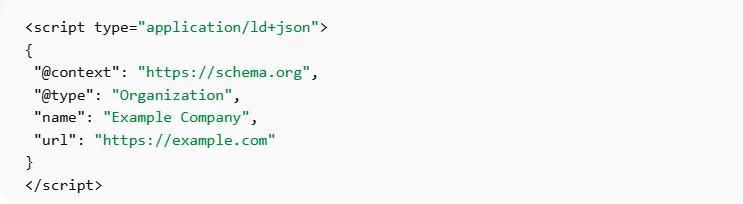
The script must start with the JSON-LD script tag and end with a closing script tag.
Incorrect formatting is one of the fastest ways to trigger Wix JSON-LD errors.
Step 3: Fix Punctuation and Syntax
Carefully review the code for syntax mistakes.
Common issues include:
- Missing commas
- Incorrect quotes
- Unclosed brackets
- Extra commas after the last property
Even minor punctuation errors can cause JSON-LD schema validation failures.
Step 4: Add Missing Schema Properties
If your structured data is missing required properties, add them.
Example of incomplete product schema:
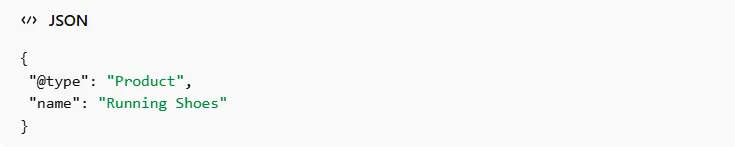
Correct version:

Adding required properties often resolves Wix rich results errors.
Step 5: Ensure Data Matches the Page Content
Make sure the information in the schema appears on the page.
For example:
If your schema contains:
- product price
- rating
- brand name
The same information should be visible on the webpage.
Search engines verify this consistency before displaying Wix rich snippets.
Step 6: Re-Submit the Page for Crawling
After fixing the schema:
- Open Google Search Console
- Use the URL inspection tool
- Request indexing
Google will then recrawl the page and update the structured data status. If you prefer a simpler setup, tools like the Wix Schema App can help automate structured data implementation and reduce manual coding errors.
How to Add or Edit Schema Markup in Wix
If your schema is incorrect, you may need to edit it directly inside Wix.
To add or modify structured data:
- Open the Wix editor
- Navigate to Pages & Menu
- Select the page
- Open SEO Basics → Advanced SEO
- Click Structured Data Markup
- Add or edit the JSON-LD code
Wix allows adding up to five schema markups per page, depending on your SEO settings.
Some pages, like product pages or blog posts, may already include preset markup generated automatically by Wix.
Why Wix Schema Is Sometimes Not Showing in Google
A common issue website owners encounter is when structured data appears valid but still does not show as a rich result in Google search . In many cases, the schema itself is correct, but other technical or indexing factors prevent it from appearing in search results.
Here are the most common reasons:
The page is not indexed yet
The schema type is not eligible for rich results
Google has not recrawled the page yet
- Missing required schema properties
If Google has not crawled and indexed the page, it cannot process or display the structured data. Make sure the page is indexed by checking it in Google Search Console using the URL Inspection tool.
Although many schema types exist, Google only supports certain types for rich results. Even if the markup is valid, it may not generate rich snippets if the schema type isn’t supported for enhanced search features.
After adding or fixing schema markup, Google may take some time to crawl the page again and update the search results. In some cases, this process can take several days.
Structured data often requires specific properties to qualify for rich results. For example, a product schema without fields like price, availability, or image may trigger warnings and fail to appear as a rich snippet.
When troubleshooting Wix schema markup errors or Wix rich results errors, it’s important to check these factors along with the schema code itself to identify why the structured data is not appearing in Google.
Common Wix Schema Troubleshooting Checklist
Use this quick checklist when fixing Wix schema markup errors.
| Issue | Solution |
|---|---|
| JSON syntax error | Validate with schema testing tool |
| HTML inside JSON-LD | Remove all HTML tags |
| Missing properties | Add required schema fields |
| Data mismatch | Ensure schema matches page content |
| Schema not showing | Request indexing in Search Console |
This troubleshooting process solves most structured data errors in Wix.
Best Practices to Avoid Wix Schema Errors
Preventing schema issues early can save a lot of time and help ensure your structured data consistently supports SEO performance. Follow these best practices to avoid common Wix schema markup errors and Wix structured data errors.
Validate schema before publishing
Use correct JSON-LD formatting
Include required schema properties
Ensure schema matches visible page content
Avoid duplicate or conflicting schema types
Update schema when page content changes
Monitor structured data in Google Search Console
Always test your structured data using tools like the Google Rich Results Test or a schema validator before adding it to your Wix page. This helps catch syntax issues, missing properties, or unsupported schema types early.
Wix primarily supports JSON-LD structured data, so ensure the markup follows proper syntax rules. Even small mistakes like missing commas, incorrect quotes, or unclosed brackets can lead to Wix JSON-LD errors.
Many schema types require specific fields to qualify for rich results. For example, product schema often requires properties such as name, image, price, and availability. Missing these fields can trigger Wix schema validation errors.
The structured data should reflect the information that users can see on the page. If the schema includes details like ratings, prices, or author information that are not visible on the page, search engines may ignore the markup.
Adding multiple schema blocks describing the same content can confuse search engines and cause structured data errors in Wix. Use only the schema types that are relevant to the page.
If you update important page details such as product pricing, availability, or event dates, make sure the structured data is updated as well. Outdated schema information can cause validation warnings or reduce eligibility for rich results.
Regularly check the Enhancements section in Google Search Console to detect any Wix rich results errors or warnings. Monitoring these reports helps you identify issues early and fix them before they impact search visibility.
Conclusion
Schema markup is a valuable SEO tool, but even small errors can prevent search engines from using your structured data properly. If you’re facing Wix schema markup errors or missing rich snippets, reviewing your JSON-LD syntax, adding required properties, and ensuring the markup matches your page content can usually resolve the issue.
Once implemented correctly, structured data helps search engines understand your content better and can improve visibility through Wix rich snippets and enhanced search results. By following the steps in this guide, you can confidently fix schema markup errors in Wix and keep your structured data working effectively.
FAQs
Why is my Wix schema markup not showing in Google?
Your schema may not appear if the page is not indexed, required properties are missing, or Google has not yet recrawled the page.
How do I validate Wix structured data?
Use tools like
- Google Rich Results Test
- Schema.org Validator
- Google Search Console
These tools highlight syntax errors and missing schema fields.
What causes Wix JSON-LD errors?
Most errors occur due to:
- Incorrect syntax
- Missing required properties
- HTML inside JSON-LD
- Unsupported schema types
Can Wix generate schemas automatically?
Yes. Wix automatically generates schema for certain page types such as:
- Product pages
- Blog posts
- Events
You can also add custom schema manually through the SEO settings.
How long does it take for schema fixes to appear in Google?
After fixing schema markup, Google may take several days to recrawl and update the page.Requesting indexing in Google Search Console can speed up the process.
Are schema warnings bad for SEO?
Warnings usually indicate missing recommended properties rather than critical errors. While they don’t always block rich results, fixing them can improve eligibility and search appearance.
Can I add multiple schema types on Wix pages?
Yes. Wix allows adding multiple schema markups per page, but each must be valid JSON-LD and relevant to the page content.