

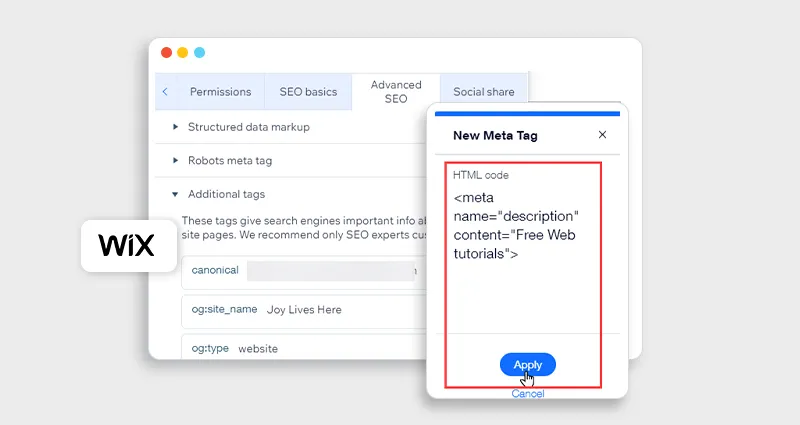
If you’re trying to improve visibility in search results, one question comes up quickly: where to add schema markup in Wix pages so it actually works?
It’s not just about adding structured data, it’s about placing it in the right location so search engines can read, validate, and use it for rich results.
From experience working with Wix SEO setups, most users either:
- Add schema in the wrong place
- Duplicate structured data unintentionally
- Or rely only on default Wix structured data (which is often not enough)
This guide will walk you through exactly where to place schema markup in Wix, how to implement it properly, and what actually drives results in real-world Wix structured data SEO.
What is Schema Markup in Wix and Why Its Placement Matters
Schema markup (structured data) is a standardized format (usually Wix JSON-LD schema) that helps search engines understand your content. If you’re new to this topic, it’s helpful to start with understanding Wix schema markup before implementing it across your site.
When implemented correctly, it can unlock:
- Rich snippets (FAQs, reviews, products)
- Better indexing clarity
- Improved click-through rates
According to Google’s official structured data documentation, properly implemented schema improves how content is interpreted, not directly ranked, but it strongly influences visibility and CTR.
Where to Add Schema Markup in Wix Pages (Exact Locations Explained)
This is where most confusion happens. Wix offers multiple places to add schema markup, and each serves a different purpose.
Let’s break them down clearly.
1. Page-Level Schema (Best for Most Use Cases)
Best for:
- Blog posts
- Product pages
- Service pages
- Landing pages
This is the most important place when deciding where to add schema markup in Wix pages.
Where to find it:
- Go to Wix Editor
- Select a page
- Click Page Settings → SEO Basics → Advanced SEO
- Add your JSON-LD schema markup
Why this matters:
Page-level schema ensures:
- Relevance to specific content
- No unnecessary duplication
- Better eligibility for rich results
Example: FAQ Schema (JSON-LD)
<script type="application/ld+json">
{
"@context": "https://schema.org",
"@type": "FAQPage",
"mainEntity": [{
"@type": "Question",
"name": "Where to add schema markup in Wix pages?",
"acceptedAnswer": {
"@type": "Answer",
"text": "You can add schema markup in Wix via page SEO settings under Advanced SEO."
}
}]
}
</script>
Pro Tip: If you’re targeting rich snippets, this is the best place to add schema in the Wix editor.
2. Site-Wide Schema (For Global Information)
Best for:
- Organization schema
- Local Business schema
- Website schema
Where to find it:
Go to Wix Dashboard → Marketing & SEO → SEO Tools → SEO Settings, where you can configure global structured data that applies across your entire site.
When to use it:
Use site-wide schema when the information is consistent across all pages, such as:
- Business name, logo, and contact details
- Brand identity and social profiles
- Website-level metadata (like search actions)
This helps search engines build a clear, unified understanding of your brand, which strengthens trust signals and entity recognition.
What to keep in mind:
Site-wide schema should always stay generic and foundational. It works best as a supporting layer to your page-level schema, not a replacement.
Common mistake:
Adding page-specific schema types (like Product, FAQ, or Article) at the site-wide level can:
- Create duplication across pages
- Confuse search engines about content relevance
- Reduce eligibility for rich results
3. Custom Code (Advanced Control)
If you’re scaling your SEO efforts or need more flexibility, using custom code is one of the most powerful ways to handle Wix schema implementation. However, if you want a simpler way to manage schema across multiple pages, a Wix schema app can help automate structured data without manually editing code.
Custom Code Injection:
Wix allows you to manually inject structured data scripts, giving you full control over how and where your schema is applied.
Where to find it:
Go to Settings → Custom Code, where you can add your schema markup to either the head or body section of your website.
When to use it:
This method is best suited for advanced use cases, such as:
- Adding a global schema that isn’t supported within Wix’s built-in SEO settings
- Implementing more complex or experimental structured data types
- Managing schema at scale without editing individual pages
Important note:
Since custom code is typically applied site-wide, even a small error can impact your entire website’s structured data. Always test and validate your schema before and after deployment to ensure it’s working correctly and not causing conflicts.
4. Dynamic Pages (CMS-Based Schema)
If you’re using Wix CMS, dynamic schema is one of the most efficient ways to scale Wix structured data SEO.
Best for:
- Blog posts
- Directories (e.g., listings, profiles)
- Product catalogs
How it works:
Instead of manually adding schema to each page, Wix pulls data directly from your CMS fields, such as:
- Page title
- Description
- Pricing
- Images
This data is then automatically converted into structured data for each dynamic page.
Why this matters:
- Saves significant time on large websites
- Ensures consistency across hundreds of pages
- Reduces manual errors in schema implementation
In practice, this is the best approach for websites that scale, as it keeps your structured data accurate and continuously updated without ongoing manual effort.
Page-Level vs Site-Wide Schema (Quick Comparison)
| Feature | Page-Level Schema | Site-Wide Schema |
|---|---|---|
| Relevance | High | Medium |
| Best for | Content-specific pages | Brand/business info |
| Risk of duplication | Low | High |
| SEO impact | Strong | Supporting |
In most cases, page-level schema is the correct answer when deciding where to place schema markup in Wix.
How to Add Schema Markup in Wix Pages (Step-by-Step)
Here’s a practical walkthrough for beginners and advanced users alike.
Step 1: Identify Schema Type
Choose based on page:
- Blog → Article schema
- Product → Product schema
- FAQ → FAQ schema
Step 2: Generate JSON-LD
Use:
- Schema generators
- Or write manually
You can take help from Google’s structured data guidelines to write code manually.
Step 3: Add to Wix Page
- Go to page SEO settings
- Paste JSON-LD under Advanced SEO
Step 4: Test Your Schema
Use:
Step 5: Monitor Performance
Check:
- Search Console → Enhancements
- Rich result impressions
Best Practices for Wix Schema Markup
From real-world Wix schema implementation, these practices consistently deliver better results:
Keep the schema relevant to the page
Each page should only include the schema that directly reflects its content. For example, adding FAQ schema to a product page that doesn’t actually contain FAQs can confuse search engines. Relevance improves how accurately your content is understood and increases your chances of earning rich results.
Use JSON-LD format
JSON-LD is the preferred format recommended by Google for Wix JSON-LD schema markup. It’s easier to implement within Wix settings, keeps your code clean, and reduces the risk of breaking your page layout compared to inline schema formats.
Avoid duplication
One of the most overlooked issues in Wix structured data SEO is duplicate schema. This often happens when:
- Wix already adds default structured data
- And you manually add a similar schema again
This can lead to conflicting signals. Always check the existing schema before adding new markup.
Validate every change
Even a small syntax error, like a missing comma or bracket, can invalidate your entire schema. That’s why testing with tools like Google’s Rich Results Test is essential after every update.
Focus on rich result eligibility
Not all schema types generate rich snippets. Prioritize schema that can actually enhance your search listing, such as FAQ, Product, or Review schema, instead of adding markup that doesn’t impact visibility.
Common Mistakes When Adding Schema in Wix
Most users make similar mistakes when trying to add schema markup in Wix, and avoiding these can save a lot of time and effort.
Adding schema in the wrong location
Placing page-specific schema (like FAQ or Product) in site-wide settings spreads the same markup across all pages. This reduces relevance and can prevent search engines from properly associating schema with the correct content.
Duplicating schema types across pages
Using the same schema block repeatedly without customizing it for each page leads to generic structured data. For example, copying the same FAQ schema across multiple pages without updating questions can weaken SEO signals.
Using outdated or incomplete schema fields
Schema standards evolve, and missing recommended properties (like review, price, or author) can limit your eligibility for rich results. An incomplete schema is still readable, but less effective.
Not testing structured data after implementation
Skipping validation is a critical mistake. Without testing, you won’t know if your schema is eligible for rich results or if it contains errors that make it unusable.
How Wix Handles Default Structured Data
Wix automatically adds basic Wix structured data to certain pages, which is helpful for beginners. This typically includes:
- Organization schema for your website
- Product schema for Wix Stores
- Blog post (Article) schema for Wix Blog
However, this default setup is often limited in customization and depth. For example, it may not include advanced fields like FAQs, detailed product attributes, or custom business information.
Another important point is that Wix’s built-in schema can sometimes overlap with manually added schema if not reviewed carefully. This makes it important to audit existing structured data before adding your own.
In practice, default Wix structured data should be seen as a foundation, not a complete solution. To fully optimize your site, you’ll often need to enhance or override it with more targeted schema based on your content and SEO strategy.
Conclusion
Knowing where to add schema markup in Wix pages is what separates basic SEO from truly effective structured data implementation. In most cases, the right approach is to focus on page-level schema for better relevance and higher chances of earning rich results, while using site-wide schema only for consistent, global business information.
It’s equally important to avoid duplication between default and custom schema and to validate every change to ensure accuracy. When implemented correctly, Wix schema markup becomes more than just a technical add-on, it directly influences how your content is understood, displayed, and clicked in search results, which is where the real SEO impact happens.
FAQs
Q1: Where to add schema markup in Wix pages?
The best place is page-level SEO settings under Advanced SEO, where you can add JSON-LD specific to that page.
Q2: Can I add schema markup in Wix without coding?
Yes, using a Wix schema app or built-in SEO tools, you can add structured data without writing code.
Q3: Should I use page-level or site-wide schema in Wix?
Use page-level schema for content-specific pages and site-wide schema only for global business information.
Q4: Does Wix automatically add structured data?
Yes, Wix adds some default structured data, but it’s limited and often needs manual enhancement.
Q5: What is the best schema format for Wix?
JSON-LD is the recommended format for Wix structured data and is preferred by search engines.
Q6: How do I test Wix schema markup?
Use
- Google Rich Results Test
- Schema Markup Validator
Q7: Can incorrect schema hurt my SEO?
Not directly, but errors can prevent rich results, reducing visibility and click-through rates.
Q8: What schema types work best in Wix?
Common high-performing types:
- FAQ
- Product
- Article
- Local Business










 Wix Schema
 Squarespace Schema
 BigCommerce Schema
 Shopify Schema
 Hubspot Schema
 Webflow Schema
 GoHighlevel Schema
 Duda Schema
 Weebly Schema