


If you’re serious about SEO in 2026, simply designing a beautiful website in Webflow isn’t enough. Search engines need structured clarity, and that’s exactly where Dynamic JSON-LD Schema Webflow comes into play.
Schema markup acts like a translator between your content and search engines. But a static schema only takes you so far. When you’re working with CMS-driven pages, blogs, products, and directories, you need Webflow Dynamic JSON-LD Schema to scale your SEO effectively.
In this guide, you’ll learn not just how to add JSON-LD in Webflow, but how to do it dynamically, strategically, and correctly, so your site can earn Webflow rich snippets, improve rankings, and stay future-proof.
What Is JSON-LD Schema and Why It Matters in Webflow
Before jumping into implementation, it’s important to understand the “why.”
JSON-LD (JavaScript Object Notation for Linked Data) is Google’s preferred format for structured data. It allows you to define what your content means, not just what it says.
For example:
- A blog post becomes an Article
- A product page becomes a Product
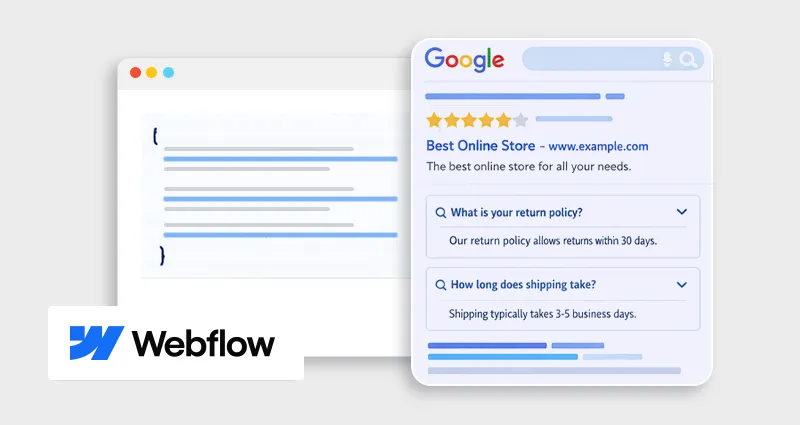
- FAQs become FAQPage schema
This structured data powers:
- Rich results (stars, FAQs, pricing)
- Better indexing and crawling
- Enhanced visibility in AI-driven search
According to Google’s official documentation, structured data helps search engines “understand the content of your pages and enable rich results.”
Understanding Webflow Schema Markup (The Real Limitation)
Webflow gives you design flexibility, but when it comes to Webflow schema markup, things are not fully automated.
Out of the box, Webflow:
- Doesn’t generate advanced structured data for CMS items
- Doesn’t map CMS fields to schema types
- Requires manual configuration for each schema type
This means if you’re serious about Webflow structured data , you must take control of implementation yourself.
This is where most websites fall behind. They either:
- Add incomplete schema
- Use generic markup
- Or skip it entirely
The real opportunity lies in building a repeatable system for Webflow Dynamic JSON-LD Schema that scales with your content.
Static vs Dynamic JSON-LD in Webflow (Deeper Breakdown)
Let’s simplify this.
In Webflow, static JSON-LD means manually adding schema to each page. It works for fixed pages like your homepage or landing pages, but quickly becomes inefficient as your site grows, every update has to be done manually.
Dynamic JSON-LD, on the other hand, pulls data directly from CMS fields. This means every blog post or product page automatically gets its own schema, making it the backbone of scalable SEO and Dynamic JSON-LD Schema Webflow.
Here’s a quick comparison:
| Feature | Static JSON-LD | Dynamic JSON-LD (Webflow CMS) |
|---|---|---|
| Setup | Manual per page | One-time template setup |
| Scalability | Limited | Highly scalable |
| Maintenance | Manual updates | Auto-updates via CMS |
| Best For | Static pages | Blogs, products, CMS content |
In practice, dynamic mapping looks like:
- Blog Title → headline
- Summary → description
- Author → author.name
This is the foundation of Dynamic schema markup Webflow CMS, set it once, and it scales across your entire site.
Best Schema Types for Webflow Websites (With Use Cases)
Choosing the right schema isn’t just technical, it’s strategic. The goal is to match your Webflow schema type with the page intent so search engines can clearly understand and enhance your content.
1. Article Schema
Best for blogs, guides, and resources. It helps search engines highlight key details like the author, publish date, and featured image, improving visibility in news and content-rich results.
2. Product Schema
Ideal for SaaS, digital products, or e-commerce-style pages. It enables rich results like pricing, availability, and reviews, which can significantly improve click-through rates.
3. FAQ Schema
Perfect for informational or high-intent pages. It allows your FAQs to appear directly in search results, increasing SERP real estate and answering user queries upfront.
4. Breadcrumb Schema
Helps search engines understand your site hierarchy. It improves navigation in search results and makes your listings cleaner and more user-friendly.
5. Organization Schema
Essential for establishing brand identity. It provides key business details (name, logo, social profiles) and supports eligibility for knowledge panels.
Using the right combination of these schema types is key to effective Webflow structured data and unlocking Webflow rich snippets.
Step-by-Step: How to Add Dynamic JSON-LD Schema in Webflow
Now let’s go deeper into the actual Webflow JSON-LD schema implementation .
Step 1: Plan Your Schema Structure First (Critical Step)
Before writing any code, define:
- What type of page is this?
- What schema type fits best?
- Which CMS fields map to schema properties?
For example:
| CMS Field | Schema Property |
|---|---|
| Blog Title | headline |
| Summary | description |
| Author Name | author.name |
| Publish Date | datePublished |
Planning this upfront prevents errors later and ensures your Webflow structured data is accurate and scalable.
Step 2: Create a Dynamic JSON-LD Template
Here’s an improved Article schema example with more completeness:
<script type="application/ld+json">
{
"@context": "https://schema.org",
"@type": "Article",
"headline": "{{wf {"path":"name","type":"PlainText"} }}",
"description": "{{wf {"path":"summary","type":"PlainText"} }}",
"author": {
"@type": "Person",
"name": "{{wf {"path":"author","type":"PlainText"} }}"
},
"publisher": {
"@type": "Organization",
"name": "Your Brand Name"
},
"datePublished": "{{wf {"path":"publish-date","type":"Date"} }}",
"dateModified": "{{wf {"path":"publish-date","type":"Date"} }}",
"image": "{{wf {"path":"main-image","type":"ImageRef"} }}",
"mainEntityOfPage": {
"@type": "WebPage",
"@id": "{{wf {"path":"slug","type":"PlainText"} }}"
}
}
</script>
If you’re not comfortable writing this manually, you can use a schema markup tool or JSON-LD schema generator to create the base structure, then adapt it for Webflow CMS fields.
This step is crucial for improving your chances of earning Webflow rich snippets.
Step 3: Add Schema to CMS Template Pages
In Webflow:- Open your CMS Collection Template
- Go to Page Settings
- Paste the schema inside thesection
This ensures every CMS item automatically generates its own schema, forming the backbone of Webflow CMS schema automation.
Step 4: Validate Using Schema Tools
Validation is non-negotiable.
Use:
- Google Rich Results Test
- Schema.org validator
- Any reliable schema markup validator
You can also cross-check your output using a schema markup tool to ensure everything is correctly structured and eligible for rich results.
Step 5: Debug Common Errors
Some practical debugging tips:
- If fields show empty → Check CMS field mapping
- If schema fails → Ensure JSON syntax is valid
- If rich results don’t appear → Verify required fields and content alignment
Most issues come from small mismatches, not major errors. Fixing these ensures your Webflow SEO structured data performs as expected.
Advanced Strategies for Dynamic Schema in Webflow
Once the basics are in place, this is where you gain a real competitive edge with Dynamic JSON-LD Schema Webflow.
1. Combine Multiple Schema Types
Instead of relying on a single schema, layer relevant types strategically.
For example:
- Article + FAQ schema (for blog posts)
- Product + Review schema (for product pages)
This increases your chances of capturing multiple SERP features like FAQs, ratings, and enhanced listings, boosting visibility and CTR.
2. Use Conditional Visibility Logic
In Webflow, you can control when a schema appears based on CMS data.
This helps you:
- Show schema only when required fields exist
- Prevent empty or incomplete structured data
It’s a simple step that significantly improves schema accuracy and eligibility.
3. Keep Schema in Sync with Content
Your schema should always match what users see on the page. Search engines actively compare structured data with visible content.
If there’s a mismatch:
- Your schema may be ignored
- Or flagged as misleading
Keeping everything aligned ensures long-term trust and performance.
4. Optimize for AI Search (AIO)
Modern search engines and AI assistants rely heavily on structured data to interpret content.
Well-implemented Webflow structured data helps:
- Improve content understanding
- Increase chances of appearing in AI-generated answers
- Enhance visibility in featured results
- This makes schema not just an SEO tactic, but a future-ready optimization layer.
Common Mistakes in Webflow Schema Markup Implementation
Even advanced users run into these:
Even advanced users run into these:- Adding a schema that doesn’t match visible content
- Overusing schema types unnecessarily
- Forgetting required properties
- Using a static schema for dynamic pages
- Skipping validation
Avoiding these ensures your Webflow schema markup guide translates into real results.
How Dynamic JSON-LD Impacts SEO (Practical Insight)
From hands-on SEO experience, implementing Webflow Dynamic JSON-LD Schema does more than just “add markup”, it strengthens how search engines interpret and present your content.
It can:
- Improve click-through rates by enabling rich results like FAQs, ratings, and enhanced listings that stand out in SERPs
- Help search engines categorize content better,making it easier to match your pages with the right search intent.
- Increase visibility for long-tail queries, especially when schema adds contextual clarity (e.g., author, topic, product details)
- Enhance performance in AI-powered search, where structured data plays a key role in generating accurate answers.
Over time, applying Dynamic JSON-LD Schema Webflow across your CMS creates consistent, structured signals across your site. That consistency improves crawl efficiency, indexing quality, and overall search visibility.
It’s not just a technical add-on, it’s a scalable ranking support system that compounds SEO gains as your content grows.
Conclusion
Mastering Dynamic JSON-LD Schema Webflow is less about adding code and more about building a scalable SEO system.
When you implement Webflow Dynamic JSON-LD Schema correctly, you move beyond basic optimization into a structured, search-friendly architecture. Every CMS page becomes an opportunity to rank better, appear richer in search results, and communicate clearly with search engines.
Focus on accuracy, scalability, and alignment with content, and your structured data will start working as a long-term SEO asset, not just a one-time setup.
FAQs
Q1: What is Dynamic JSON-LD Schema in Webflow?
It’s a method of generating structured data dynamically using CMS fields, so each Webflow page automatically gets a unique, relevant schema without manual updates.
Q2: Is JSON-LD better than Microdata?
Yes, JSON-LD is cleaner, easier to implement, and recommended by Google because it separates structured data from HTML, reducing errors and improving maintainability.
Q3: Can I add schema without coding in Webflow?
Partially. Basic schema can be added without coding, but a dynamic schema for CMS pages requires custom code or a schema markup tool for proper implementation.
Q4: How do I test Webflow structured data?
Use a JSON-LD schema validator like Google Rich Results Test or Schema.org Validator to check errors, eligibility for rich results, and overall schema accuracy.
Q5: Which pages should have schema?
Focus on high-impact pages like blogs, product pages, FAQs, and landing pages where structured data can improve visibility, relevance, and click-through rates.
Q6: Can I use multiple schema types on one page?
Yes, you can combine schema types (e.g., Article + FAQ), as long as they are relevant, properly structured, and accurately reflect the page content.
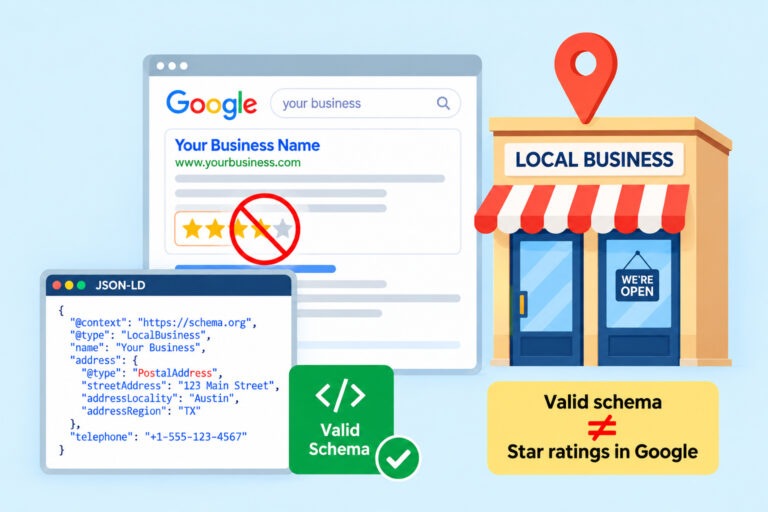
Q7: Why are my rich snippets not showing?
Common reasons include missing required fields, incorrect schema implementation, content mismatch, or Google not yet indexing updates. Validation and patience are key.
Q8: What is the best schema type for Webflow blogs?
Article schema works best, often combined with FAQ schema to enhance SERP appearance and improve chances of earning rich results.







 Wix Schema
 Squarespace Schema
 BigCommerce Schema
 Shopify Schema
 Hubspot Schema
 Webflow Schema
 GoHighlevel Schema
 Duda Schema
 Weebly Schema