

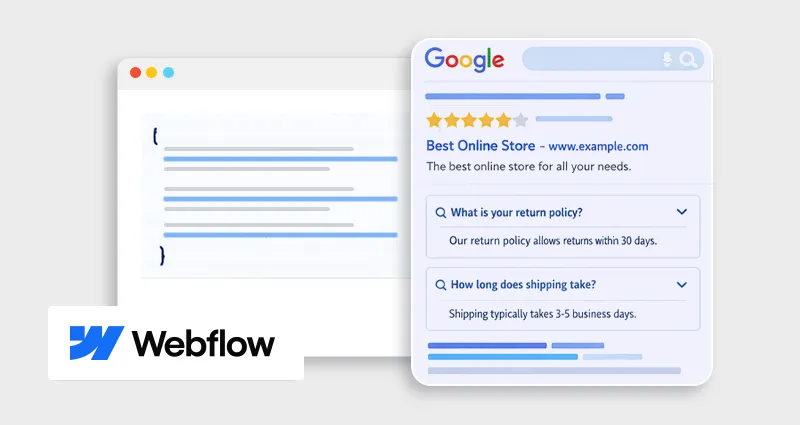
Most Webflow sites already answer customer questions, but search engines don’t automatically recognize that structure. As a result, valuable FAQ content often gets buried in standard listings instead of standing out with enhanced results.
That’s where the Webflow FAQ schema makes a real difference. By turning your FAQs into structured data, you help search engines interpret your content with precision, unlocking Webflow rich snippets that expand your listing, attract attention, and improve how users engage with your page.
In this guide, you’ll learn how to implement FAQ schema correctly in Webflow, see real JSON-LD examples, use the right validation tools, and fix common issues so your structured data actually delivers results in search.
Understanding Webflow Schema Markup
Before diving into FAQs specifically, it’s important to understand how Webflow schema markup works.
Schema markup (or Webflow structured data) is a layer of code, usually written in JSON-LD, that helps search engines interpret your content. Instead of guessing what your page is about, Google gets explicit signals.
For example:
- A blog post → Article schema
- A product page → Product schema
- A FAQ section → FAQPage schema
This is why understanding Webflow schema markup is critical. Without it, your content competes on plain text alone. With it, you unlock enhanced visibility.
What Is Webflow FAQ Schema (FAQPage Schema)?
Webflow FAQ schema is a type of structured data that tells search engines your page contains a list of questions and answers.
When implemented correctly, it can generate:
- Expandable FAQ dropdowns in search results
- Improved click-through rates
- Better content clarity for AI search systems
This is often referred to as Webflow rich snippets FAQ, and it’s one of the most impactful schema types you can implement.
Why FAQ Schema Matters for Webflow SEO
Adding FAQ schema markup directly impacts how your pages perform in search:
1. Improves Click-Through Rate (CTR)
FAQ-rich results expand your listing with dropdown answers, making it more prominent in SERPs. This increased visibility often leads to higher CTR compared to standard blue links.
2. Enhances Content Understanding
Search engines use structured data FAQ Webflow to clearly interpret your questions and answers, helping your page rank for long-tail and question-based queries more accurately.
3. Supports AI & Voice Search
AI-driven search and voice assistants rely on structured formats like FAQ schema to pull precise answers, increasing your chances of being featured in voice results and AI summaries.
4. Builds Topical Authority
Well-structured FAQs demonstrate subject expertise and directly address user intent, reinforcing E-E-A-T signals and improving overall content credibility.
Best Schema Types for Webflow Websites
While Webflow’s FAQ structured data is highly effective, combining it with other schema types creates a stronger SEO foundation.
Some of the best schema types for Webflow websites include:
-
Article schema (for blogs)
Helps search engines understand blog content, authorship, and publishing details.
-
Product schema (for e-commerce)
Enables rich results like pricing, availability, and reviews.
-
FAQ schema (for informational pages)
Targets question-based queries and enhances SERP visibility.
-
Breadcrumb schema
Improves site structure clarity and navigation in search results.
-
Organization schema
Builds brand trust by defining your business details and identity.
How to Add FAQ Schema in Webflow (Step-by-Step)
Let’s break down the Webflow schema markup implementation based on how your site is built: static pages vs dynamic (CMS) pages.
Adding FAQ Schema to Static Pages in Webflow
Static pages are standard Webflow pages where content doesn’t change dynamically.
Step 1: Create Your FAQ Content
Ensure your FAQ section:
- It is fully visible on the page
- Matches the schema content exactly
- Uses clear, concise answers
Google requires structured data to reflect visible content.
Step 2: Generate JSON-LD FAQ Schema
You can use a:
- Schema markup generator
- JSON-LD schema generator
- Or write it manually
Webflow FAQ Schema JSON-LD Example
{
"@context": "https://schema.org",
"@type": "FAQPage",
"mainEntity": [
{
"@type": "Question",
"name": "What is Webflow FAQ schema?",
"acceptedAnswer": {
"@type": "Answer",
"text": "Webflow FAQ schema is structured data that helps search engines understand FAQ content and display rich results."
}
},
{
"@type": "Question",
"name": "How do I add FAQ schema in Webflow?",
"acceptedAnswer": {
"@type": "Answer",
"text": "You can add FAQ schema in Webflow by inserting JSON-LD code inside the page settings or embed element."
}
}
]
}
This is a standard FAQ schema Webflow JSON-LD example you can customize.
Step 3: Add Schema to Webflow (Static Pages)
Option A: Page Settings (Recommended)
- Open Page Settings
- Scroll to Custom Code
- Paste JSON-LD inside Before
Option B: Embed Element
- Add an Embed block to the page
- Paste your JSON-LD script
This is the simplest way to add FAQ schema in Webflow for static content.
Step 4: Validate Your Schema
Use:
- A schema markup validator
- A JSON-LD schema validator
Recommended tools:
- Google Rich Results Test
- Schema.org Validator
Step 5: Publish & Monitor
- Publish your site
- Request indexing in Google Search Console
- Track impressions and CTR
Adding FAQ Schema to Dynamic (CMS) Pages in Webflow
Dynamic pages (CMS collections) require a more scalable approach to Webflow structured data.
Step 1: Structure Your CMS for FAQs
In your Webflow CMS:
- Create fields like:
- Question
- Answer
- Use a Collection List to display FAQs on your page
This ensures your structured data FAQ Webflow matches dynamic content.
Step 2: Generate Dynamic JSON-LD Schema
Instead of static code, you’ll insert dynamic fields into JSON-LD.
Example (Conceptual Dynamic Structure)
{
"@context": "https://schema.org",
"@type": "FAQPage",
"mainEntity": [
{
"@type": "Question",
"name": "{{wf {"path":"question","type":"PlainText"} }}",
"acceptedAnswer": {
"@type": "Answer",
"text": "{{wf {"path":"answer","type":"PlainText"} }}"
}
}
]
}
These placeholders pull content directly from your CMS.
Step 3: Add Schema to CMS Template Page
- Go to your Collection Template Page
- Add an Embed element
- Insert the dynamic JSON-LD code
This allows automatic schema generation for every CMS item, critical for scalable Webflow FAQ schema implementation.
Step 4: Handle Multiple FAQs (Important)
If your page has multiple FAQ items:
- You’ll need to structure mainEntity as an array
- Webflow may require custom solutions (like custom code or JS loops) to output multiple entries dynamically
For complex setups, a Webflow Schema Markup tool or custom script can simplify this process.
Step 5: Validate Dynamic Schema
Test multiple CMS pages using:
Ensure:
- No empty fields
- Proper JSON formatting
- Correct data rendering
Step 6: Publish & Monitor
- Publish CMS changes
- Check indexing
- Monitor rich snippet performance
Static vs Dynamic: Which Should You Use?
- Use a static FAQ schema for landing pages or fixed content
- Use a dynamic FAQ schema for blogs, help centers, or scalable FAQ systems
In most real-world projects, combining both approaches gives the best results.
Common Mistakes & How to Fix FAQ Schema Errors in Webflow
Even experienced developers can run into issues with the Webflow schema markup FAQ if best practices aren’t followed.
1. Content Mismatch
Your schema must exactly match the visible FAQ content. Any discrepancy can cause Google to ignore or penalize the markup.
2. Missing Required Fields
Each FAQ item must include name (question) and acceptedAnswer (answer). Missing these fields will result in validation errors.
3. Overusing FAQ Schema
Adding the FAQ schema to every page can dilute its value. Use it only where FAQs genuinely add value and context.
4. Invalid JSON Format
Small syntax issues, like missing commas or incorrect brackets, can break your entire schema. Always validate using a schema markup validator.
5. Hidden Content
If your FAQs are not visible to users (e.g., hidden tabs or scripts), Google may ignore the schema entirely, as it prioritizes user-visible content.
Manual vs Tools: What’s the Best Approach?
When implementing FAQ schema markup in the Webflow guide, you can choose:
| Method | Pros | Cons |
|---|---|---|
| Manual JSON-LD | Full control | Requires technical knowledge |
| Schema markup generator | Fast & easy | Limited customization |
| Webflow Schema Markup tool | Scalable & automated | May require setup |
If you’re managing multiple pages, using a Webflow Schema Markup tool can save significant time.
Pro Tips for Better Webflow Rich Snippets FAQ
To get the most out of Webflow rich snippets FAQ, focus on both structure and content quality:
- Write concise, direct answers: Keep responses clear and to the point so search engines can easily extract them.
- Use real user queries: Base questions on actual search intent (Google suggestions, FAQs from customers, etc.).
- Avoid keyword stuffing: Use natural language, over-optimization can reduce readability and effectiveness.
- Keep answers short (approximately 40-50 words): Short answers are more likely to be featured in rich results.
- Update FAQs regularly: Refresh outdated answers to maintain accuracy and improve trust signals.
These small optimizations can significantly improve both visibility and user experience.
Conclusion
Implementing Webflow FAQ schema is one of the simplest yet most powerful ways to enhance your SEO.
It bridges the gap between your content and search engines, enabling Webflow rich snippets, improving visibility, and strengthening your site’s authority.
By following the step-by-step process, validating your structured data, and avoiding common mistakes, you can fully unlock the potential of Webflow structured data, not just for FAQs, but for your entire website.
The real advantage comes from consistency: keep your schema accurate, aligned with your content, and updated as your site evolves.
FAQs
Q1: What is the Webflow FAQ schema?
Webflow FAQ schema is structured data that helps search engines identify FAQ content and display it as rich results in SERPs.
Q2: How to add FAQ structured data to Webflow?
You can add FAQ structured data by generating JSON-LD and placing it in Webflow’s page settings or embed element.
Q3: Does the FAQ schema still work for rich snippets?
Yes, but Google selectively shows FAQ rich results based on content quality and relevance.
Q4: What is the best schema markup generator for FAQs?
Popular tools include Schema.org generators and JSON-LD schema generators designed for FAQPage markup.
Q5: How do I validate my Webflow FAQ schema?
Use a schema markup validator or JSON-LD schema validator like Google’s Rich Results Test.
Q6: Can I add multiple FAQ schemas on one page?
It’s better to use a single FAQPage schema per page to avoid conflicts.
Q7: Why is my FAQ schema not showing in Google?
Common reasons include:
- Content mismatch
- Low-quality FAQs
- Google choosing not to display rich results
Q8: Is FAQ schema important for SEO in 2026?
Yes. It plays a key role in structured search, AI visibility, and improving CTR.








 Wix Schema
 Squarespace Schema
 BigCommerce Schema
 Shopify Schema
 Hubspot Schema
 Webflow Schema
 GoHighlevel Schema
 Duda Schema
 Weebly Schema