


If you’re running an e-commerce site on Webflow and not using Webflow product schema markup, you’re leaving visibility, clicks, and conversions on the table.
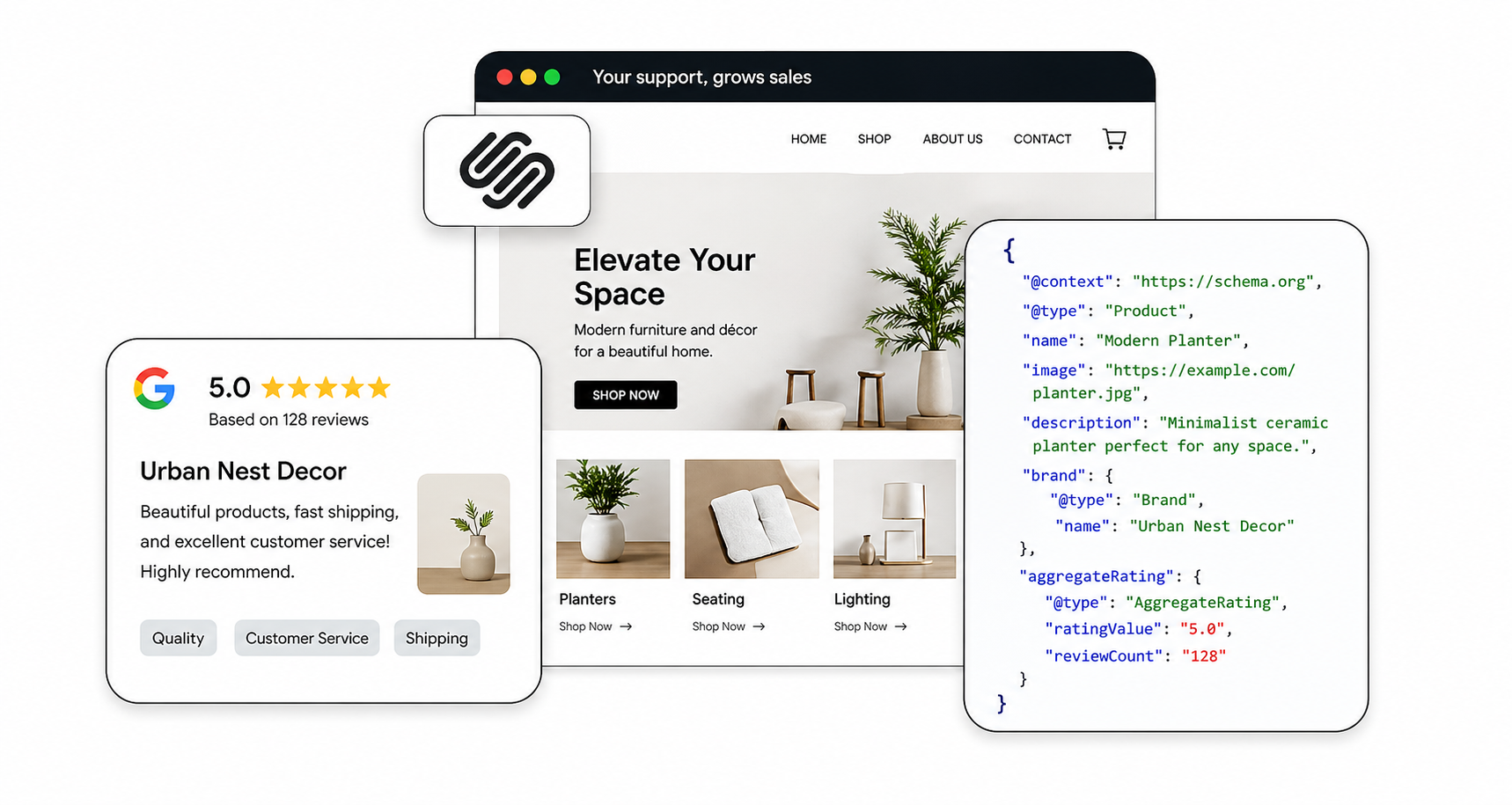
Search engines today don’t just read your content, they interpret it. That’s where Webflow structured data comes in. By adding product schema markup using JSON-LD, you help search engines understand your product details like price, availability, and reviews, making your pages eligible for Webflow rich snippets.
In this guide, you’ll learn exactly how to implement, validate, and optimize product structured data in Webflow with real examples, tools, and expert insights.
What Is Webflow Product Schema Markup?
At its core, Webflow product schema markup is a type of structured data written in JSON-LD format that helps search engines clearly understand your product information.
Instead of relying only on visible content, the schema explicitly defines key details such as:
- What your product is
- How much does it cost
- Whether it’s in stock
- What users think about it (ratings & reviews)
This structured approach removes ambiguity and allows search engines like Google to confidently display enhanced results, such as star ratings, pricing, and stock status, directly in SERPs.
These enhanced listings are known as Webflow rich snippets product results, and they play a major role in improving visibility and click-through rates.
Why Webflow Product Schema Markup Matters for SEO
Webflow product schema markup helps search engines clearly understand your product data, making your pages eligible for rich snippets and improving visibility, CTR, and overall search performance.
Key Benefits of product schema markup:
-
Higher Click-Through Rates (CTR)
Rich snippets stand out visually. Studies from Google Search Central show that enhanced search results can significantly improve CTR compared to standard listings.
-
Better Search Understanding
Structured data ensures your product details are interpreted correctly, reducing ambiguity.
-
Eligibility for Rich Results
Without a schema, your product pages won’t qualify for rich snippets, even if your content is great.
-
4. Voice & AI Search Optimization
Modern AI systems rely heavily on structured data. Proper Webflow structured data product implementation improves your visibility in AI-powered search experiences.
Understanding Webflow Schema Markup (How It Works)
Before implementation, it’s important to understand how Webflow schema markup implementation actually works behind the scenes.
Webflow provides design flexibility, but it does not automatically generate an advanced product schema. To fully control your Webflow structured data, you need to manually add JSON-LD to your pages.
There are three primary ways to implement this:
- Embedding custom JSON-LD code directly into product pages
- Using CMS fields to create a dynamic, auto-updating schema
- Adding global schema via page or site settings
For e-commerce websites, CMS-driven dynamic schema is the most scalable and reliable approach. It ensures that changes in product data, like pricing or availability, are automatically reflected in your structured data, keeping it accurate and compliant.
Product Schema Properties You Must Include
To correctly implement the product schema Webflow, you need to include both required and recommended properties defined by Schema.org and Google.
Essential Fields (Required for Rich Results)
- name – Clearly identifies the product
- image – A valid product image URL
- description – Concise but accurate product summary
- sku – Unique product identifier
- brand – Manufacturer or brand name
- offers:
- price – Current product price
- priceCurrency – Currency (e.g., USD, INR)
- availability – Stock status
- url – Product page URL
- aggregateRating – Displays star ratings in search
- review – Individual customer reviews
- GTIN – Global identifier for product verification
Optional but High-Impact Fields
While optional, these fields significantly enhance your chances of earning rich snippets. In practice, missing required fields, or incorrectly formatting them is one of the most common causes of Webflow schema markup errors.
Webflow Product JSON-LD Example (Ready to Use)
Here’s a clean and optimized Webflow product schema JSON-LD example:
<script type="application/ld+json">
{
"@context": "https://schema.org/",
"@type": "Product",
"name": "Wireless Bluetooth Headphones",
"image": "https://example.com/product-image.jpg",
"description": "High-quality wireless headphones with noise cancellation.",
"sku": "WBH-12345",
"brand": {
"@type": "Brand",
"name": "SoundMax"
},
"offers": {
"@type": "Offer",
"url": "https://example.com/product",
"priceCurrency": "USD",
"price": "99.99",
"availability": "https://schema.org/InStock"
}
}
</script>
This is the foundation of Webflow product JSON-LD implementation.
How to Add Product Schema in Webflow (Step-by-Step)
Here’s a practical walkthrough of how to add product schema in Webflow:
Step 1: Open Your Product Template Page
Navigate to Webflow Designer → Ecommerce → Product Template. This is where your schema should live for consistency across all products.
Step 2: Add an Embed Element
Drag an “Embed” component into the template to insert custom JSON-LD code.
Step 3: Insert JSON-LD Code
Paste your schema inside a <script type=”application/ld+json”> tag. Make sure the code is clean and properly formatted.
If you’re not comfortable writing code manually, you can use a Webflow Schema Markup tool or JSON-LD schema generator to create error-free structured data quickly.
Step 4: Make It Dynamic (Critical Step)
Connect schema fields to CMS data, such as:
- Product name
- Price
- Image
- Description
This ensures your Webflow structured data product updates automatically as your catalog changes, preventing outdated or mismatched data.
Step 5: Publish Your Site
Publish the changes so search engines can crawl and process your schema markup.
How to Validate Your Webflow Schema Markup
After implementation, validation is critical.
Use a schema markup validator or json ld schema validator to check:
- Missing fields
- Syntax errors
- Eligibility for rich results
Recommended Tools:
- Google Rich Results Test
- Schema Markup Validator (Schema.org)
Validation ensures your Webflow schema markup guide actually delivers results.
Common Webflow Product Schema Mistakes (And Fixes)
Even a well-implemented schema can fail due to small but critical issues. Here are the most common problems, and how to avoid them:
Schema Doesn’t Match Page Content
Search engines cross-check schema with visible content. If your schema shows a different price or product detail, it may be ignored.
Missing Required Fields
Omitting fields like price or availability makes your page ineligible for rich results.
Static Schema for Dynamic Products
Hardcoding values instead of using CMS fields leads to an outdated schema, especially for e-commerce stores with frequent updates.
Duplicate or Conflicting Schema
Adding multiple schema blocks for the same product can confuse search engines and dilute effectiveness.
Advanced Tips to Improve Webflow Rich Snippets
Once your Webflow product schema markup is live, optimizing it further can significantly boost performance:
1. Add Reviews & Ratings
Including aggregateRating not only improves visibility but also builds trust, making users more likely to click.
2. Use Accurate Availability Markup
Always use standardized schema URLs like:
- https://schema.org/InStock
- https://schema.org/OutOfStock
- Incorrect values can break your structured data.
3. Keep Schema in Sync with Content
A dynamic schema ensures your product data remains accurate, which is essential for maintaining eligibility for rich results.
4. Combine with Supporting Schema Types
Enhance your SEO by adding complementary schema, such as:
- Breadcrumb schema (improves navigation display)
- Organization schema (builds brand authority)
When Will You See Results?
It’s important to set realistic expectations, schema markup improves eligibility, not guarantees results.
In most cases:
- Google crawls updated pages within a few days
- Rich snippets may start appearing within 1–3 weeks
- Some pages may never receive rich results due to competition, content quality, or search intent
The key is consistency. Accurate, well-maintained Webflow product schema markup increases your chances over time and strengthens your overall search presence.
Webflow Product Schema vs Other Platforms
| Feature | Webflow | Shopify | WordPress |
|---|---|---|---|
| Default Schema | Limited | Basic built-in | Plugin-based |
| Customization | High | Moderate | Very High |
| JSON-LD Control | Full | Partial | Full |
Webflow gives you flexibility, but requires manual setup for an advanced schema.
Conclusion
Implementing Webflow product schema markup is one of the most impactful SEO upgrades you can make for an e-commerce site in 2026. It bridges the gap between your content and how search engines understand it, unlocking rich snippets, improving CTR, and strengthening your visibility in both traditional and AI-driven search.
By following this guide, adding JSON-LD, validating your markup, and optimizing it over time, you’re not just improving SEO; you’re building a more structured, future-ready website.
FAQs
Q1: What is Webflow product schema markup?
It’s structured data that helps search engines understand product details and display rich snippets like price and ratings.
Q2: How do I add product schema in Webflow?
You can add it using an Embed element with JSON-LD code, ideally connected to CMS fields for dynamic data.
Q3: Does Webflow automatically add product schema?
Webflow adds a limited default schema, but you need a custom Webflow schema markup implementation for full control and rich results.
Q4: What is the best format for Webflow structured data?
JSON-LD is the recommended format by Google for implementing Webflow structured data products.
Q5: How do I test Webflow schema markup?
Use tools like Google Rich Results Test or a json ld schema validator to ensure your markup is valid.
Q6: Why are my rich snippets not showing?
Common reasons include:
- Missing required fields
- Low page authority
- Schema errors
- Google is not selecting your page for rich results
Q7: Can I use a schema markup generator for Webflow?
Yes, using a schema markup generator or json ld schema generator simplifies the process and reduces errors.
Q8: How often should I update schema markup?
For e-commerce sites, the schema should update dynamically whenever product details like price or availability change.







 Wix Schema
 Squarespace Schema
 BigCommerce Schema
 Shopify Schema
 Hubspot Schema
 Webflow Schema
 GoHighlevel Schema
 Duda Schema
 Weebly Schema