


Star ratings in Google search results don’t appear randomly, they come from properly structured data added to a website. For Wix site owners, understanding how to add review schema in Wix can significantly improve how listings appear in search and how users interact with them. Instead of showing a basic result, pages can display ratings, review counts, and credibility signals that naturally attract more attention.
This guide explains everything clearly and practically, what review schema is, why it matters for SEO, and how it can be implemented on a Wix website.
Quick Steps to Add Review Schema in Wix
- Choose the correct review schema type for the page
- Generate the review schema in JSON-LD format
- Open Wix Dashboard → Settings → Custom Code
- Paste the JSON-LD into the page
<head> - Apply the schema to the relevant pages
- Publish and validate using Google’s Rich Results Test
What Is Review Schema in Wix and Why It Matters
A clear understanding of review schema starts with how search engines interpret content beyond just text.
How Review Schema Works in Wix
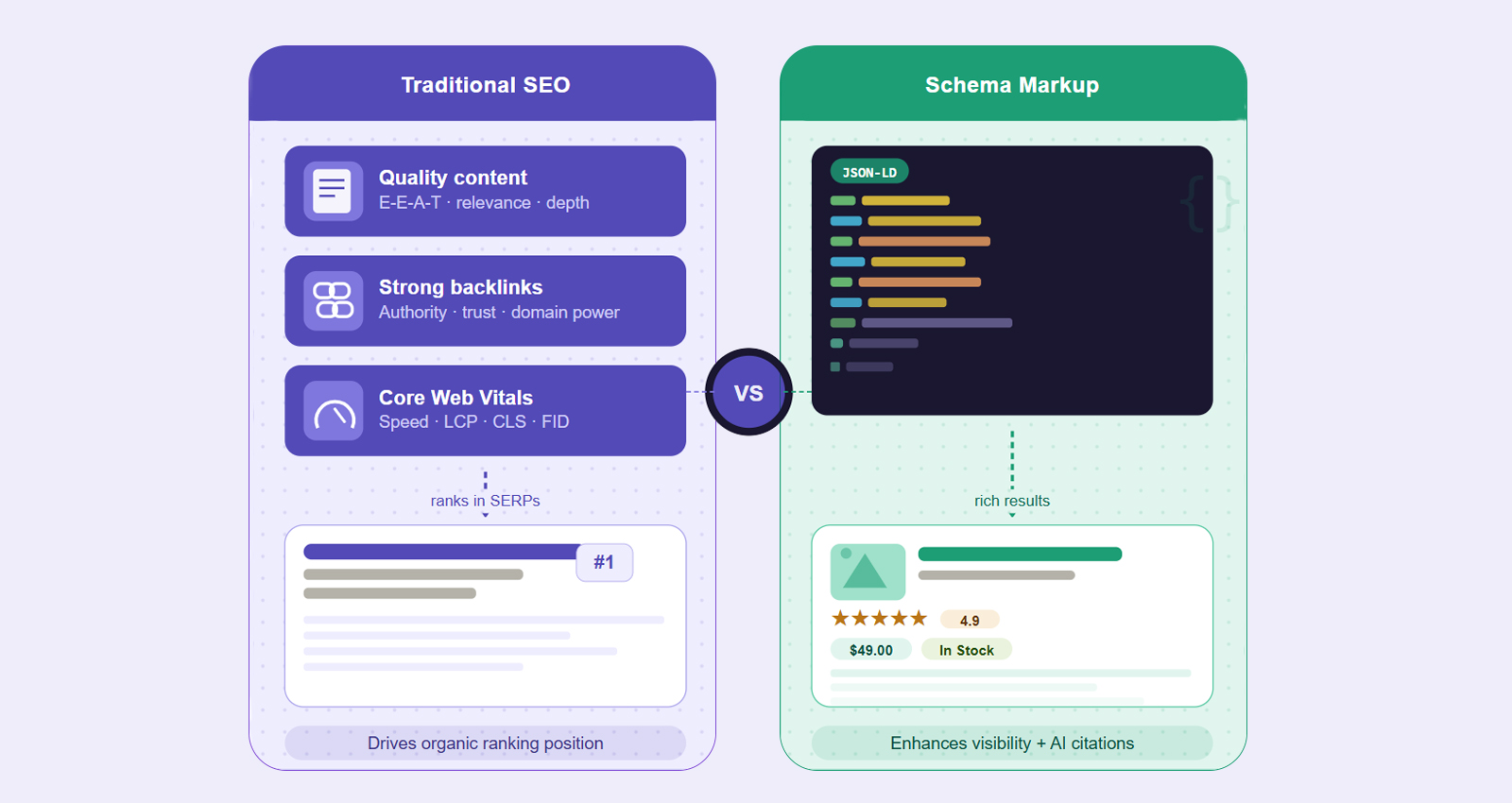
Structured data is a standardized format that helps search engines understand the content on a webpage. Google uses it to generate rich snippets, those visually enhanced search results that display star ratings, review counts, prices, and more directly in the SERPs (Search Engine Results Pages).
Review schema specifically uses a vocabulary defined by Schema.org to communicate reviewer information, rating values, and the entity being reviewed. When Google successfully reads and validates this markup, it may display star ratings beneath a page’s title in organic search results, a visual cue that consistently drives higher CTR (click-through rate).
Rich snippets with star ratings can improve CTR by 30% or more, compared to standard blue-link results. For small businesses competing in crowded local markets, that kind of visibility lift is genuinely meaningful, especially when most competitors haven’t bothered with structured data at all.
It’s also worth understanding that review schema feeds directly into how AI-powered search experiences, like AI overviews, pull and summarize business information. Getting structured data right today future-proofs a site against how search is evolving.
Types of Review Schema You Can Use in Wix
There are a few different schema types related to reviews, and choosing the right one matters:
- Review: A single review of a product, service, or business. Contains one reviewer’s name, rating, and written commentary. Useful for showcasing a specific testimonial with structured markup.
- AggregateRating: A summary of multiple reviews showing an average rating score and total review count. This is the type most commonly displayed as star ratings in Google search, and the primary target for most Wix business sites.
- Product + AggregateRating: Used on e-commerce pages where a product schema wraps an aggregate rating. Common for Wix Stores product pages.
For most Wix site owners, the AggregateRating nested inside a LocalBusiness schema is the recommended approach since it reflects overall customer experience rather than a single data point.
How Google Shows Review Rich Snippets in Search
Understanding when and why Google displays star ratings requires a closer look at how search results are structured and interpreted.
Rich Snippets vs Regular Snippets: What’s the Difference?
A standard organic result shows a page title, URL, and meta description. A rich snippet adds extra visual layers like star ratings, review counts, price ranges, and FAQ dropdowns, all pulled from structured data. This difference matters because rich snippets take up more visual space in search results and signal credibility before a user even reads the description.
That said, adding review schema does not guarantee that star ratings will appear. Google uses structured data as an input, but ultimately decides what to display based on several factors: the quality of the markup, the credibility of the review data, and whether the page meets Google’s rich result policies. Getting the implementation right is simply what makes a page eligible.
Google’s Core Requirements for Review Schema
Google has specific requirements before a review schema qualifies for rich result display:
- Reviews must come from real users, self-written or fabricated testimonials violate Google’s policies.
- The rated entity (business, product, or service) must be clearly identifiable in the markup.
AggregateRatingmust always include bothratingValueand eitherreviewCountorratingCount.- The schema markup must appear on the same page it describes, not on an unrelated page.
Violating these guidelines can result in a manual action from Google or simply prevent rich snippets from appearing. Before implementing, reviewing Google’s structured data general guidelines ensures full compliance from the start.
Step-by-Step: How to Add Review Schema in Wix
Wix does provide a Custom Code section where JSON-LD markup can be injected directly into the page head. This is the most reliable and Google-recommended method for adding review schema to any Wix site.
Step 1: Choose the Right Schema Type for the Page
Before touching any code, identify what kind of entity is being reviewed on the page:
- A local business (restaurant, salon, clinic, agency) → use LocalBusiness + AggregateRating
- A specific product being sold → use Product + AggregateRating
- A professional service (law firm, consulting, healthcare) → use Service + AggregateRating
Picking the right parent schema type matters because Google’s rich result eligibility varies by entity type. A LocalBusiness schema on a product page, for instance, sends a confusing signal that can reduce the chance of validation.
Step 2: Build the JSON-LD Markup
JSON-LD (JavaScript Object Notation for Linked Data) is Google’s preferred structured data format. It lives inside a <script> tag in the HTML <head> and is completely separate from visible page content, meaning it won’t affect how the page looks to visitors.
Here’s a complete, ready-to-use JSON-LD example for a local business with an aggregate rating:
<script type="application/ld+json">
{
"@context": "https://schema.org",
"@type": "LocalBusiness",
"name": "Your Business Name",
"image": "https://www.yourwebsite.com/logo.jpg",
"url": "https://www.yourwebsite.com",
"telephone": "+1-555-123-4567",
"address": {
"@type": "PostalAddress",
"streetAddress": "123 Main Street",
"addressLocality": "Your City",
"addressRegion": "CA",
"postalCode": "90210",
"addressCountry": "US"
},
"aggregateRating": {
"@type": "AggregateRating",
"ratingValue": "4.8",
"reviewCount": "127"
}
}
</script>
Replace every placeholder value with real, accurate business data. The ratingValue should reflect the genuine average rating from actual customer reviews, and reviewCount must match the real total. Inflated or inaccurate numbers are a policy violation.
For an e-commerce product page on Wix Stores, the structure shifts to a Product parent type:
<script type="application/ld+json">
{
"@context": "https://schema.org",
"@type": "Product",
"name": "Your Product Name",
"image": "https://www.yourwebsite.com/product-image.jpg",
"description": "Brief product description here.",
"brand": {
"@type": "Brand",
"name": "Your Brand Name"
},
"aggregateRating": {
"@type": "AggregateRating",
"ratingValue": "4.6",
"reviewCount": "89"
}
}
</script>
Both formats follow the same core logic, a parent entity wraps an aggregateRating block. The key difference is the @type field and any type-specific required properties.
Step 3: Open the Wix Custom Code Panel
To add schema markup to a Wix site, navigate to the Custom Code section in the dashboard:
- Log in to the Wix Dashboard
- Click Settings in the left-side navigation
- Scroll to the Advanced section and click Custom Code
- Click + Add Custom Code in the top right
This panel is where all third-party scripts, tracking pixels, and structured data get injected. It works reliably across all Wix plan types, though a Premium plan is required to access the Custom Code feature.
Step 4: Paste the Schema and Configure Placement
Inside the Custom Code editor:
- Paste the complete JSON-LD script (including the opening and closing
<script>tags) into the code field - Name the snippet something descriptive, like “Review Schema, Homepage” or “AggregateRating, Services Page.”
- Under Add Code to Pages, select:
- All Pages: if the business-level schema applies sitewide (typical for LocalBusiness schema)
- Choose Specific Pages: if adding product or service schema to individual pages only
- Set the Place Code in the dropdown to Head
- Click Apply, then publish the site
The schema is now live. However, being live doesn’t automatically mean Google has read it, crawling and indexing take time, and validation should come before waiting on rich snippet results.
Step 5: Validate With Google’s Rich Results Test
This step gets skipped far too often, and it’s arguably the most important one. Head to Google’s Rich Results Test and either paste the live page URL or the raw HTML code directly into the tool.
The report will show whether the schema was detected, which rich result types the page qualifies for, and any errors or warnings in the markup. Common issues include missing required fields like ratingValue, mismatched data types, or broken JSON from a misplaced comma or bracket. Fix every error before considering the implementation complete.
Step 6: Monitor Indexing in Google Search Console
After validation, open Google Search Console and navigate to the Enhancements section in the left sidebar. Once Google crawls and processes the page, structured data results will appear here (showing how many pages have valid review schema and flagging any new issues found during crawling).
Rich snippets don’t appear overnight. It can take anywhere from a few days to several weeks after indexing for star ratings to surface in actual search results. Search Console is the right place to track that progress.
How to Manage Review Schema Across Multiple Wix Pages
Many Wix sites need review schema on more than one page, a homepage with overall business ratings, plus individual service pages with their own ratings. The right approach depends on whether the ratings differ across pages.
If the same aggregate rating applies to the entire business, applying the schema to all pages via the Custom Code panel set to “All Pages” is efficient and perfectly valid. But if individual service pages carry their own distinct ratings pulled from separate review sources, each page should have its own targeted schema block with unique values.
For Wix sites managing multiple pages, products, or service categories where review data changes frequently, using a Wix schema markup tool can automate the process, keeping ratingValue and reviewCount in sync with live review platforms without requiring manual edits every time new reviews come in.
Common Mistakes That Stop Review Snippets in Wix
Even a technically valid review schema can fail to generate rich snippets if implementation mistakes or policy violations exist. Most issues come from inaccurate review data, outdated markup, or schema placed incorrectly within the page structure.
Using Self-Written or Fabricated Reviews
This is the most damaging mistake possible. Google’s structured data policies are explicit: review schema must reflect genuine user-generated reviews. A business rating itself, displaying inflated star counts, or fabricating review numbers is a direct policy violation, one that can trigger a manual action and suppress the site in search results.
Always source ratingValue and reviewCount from a verifiable platform like Google Reviews, Yelp, or a trusted on-site review system.
Letting the Schema Go Stale
Review counts and average ratings change over time. A schema that shows 4.9 stars from 200 reviews, while the actual Google Business Profile displays 3.8 from 312 reviews, creates a credibility mismatch that both search engines and real users can notice. Building a reminder to audit the schema quarterly or whenever a meaningful batch of new reviews arrives, prevents the markup from becoming outdated and misleading.
Placing Code in the Body Instead of the Head
Schema markup belongs in the <head> section. When placed in the body via Wix’s Custom Code panel, it may still be read by Google in many cases, but head placement is the standard and safest approach. Always double-check the placement dropdown before saving.
4. Not Re-Validating After Site Updates
Wix platform updates, theme changes, or newly installed apps can occasionally affect how custom code is rendered. Any time a significant change is made to the site, running the Rich Results Test again is good practice to confirm the schema is still intact and error-free.
Best Schema Format for Wix (JSON-LD vs Others)
| Format | Where It Goes | Ease of Editing | Google’s Preference |
|---|---|---|---|
| JSON-LD | <head> script tag | Very easy, fully separate from HTML | Preferred |
| Microdata | Inline with HTML elements | Harder, woven into page structure | Supported |
| RDFa | Inline with HTML elements | Complex syntax, high maintenance | Supported |
For Wix sites specifically, JSON-LD is the only practical choice.
Final Thoughts
Adding review schema in Wix is one of the simplest ways to improve how a site performs in search. The process is straightforward, create the right JSON-LD code, add it to the page, and test it properly.
When done correctly, it helps search engines display star ratings, builds trust instantly, and increases the chances of getting more clicks.
FAQs
Q1: Does Wix support structured data natively?
Yes, partially. Wix automatically generates schema for Wix Stores products, Wix Events, Wix Blog posts, and Wix Bookings pages. For review schema on general pages, like a homepage or custom services page, custom JSON-LD via the Custom Code section is necessary.
Q2: Will adding review schema guarantee star ratings in Google search results?
No. Google decides whether to display rich snippets based on quality signals, policy compliance, and relevance. A valid schema makes the page eligible for star ratings, but it doesn’t guarantee them. Sites with strong E-E-A-T signals and accurate review data tend to see better results.
Q3: How many reviews are needed before adding the schema is worthwhile?
There’s no hard minimum set by Google, but in practice, having at least 10 to 20 genuine reviews makes the data more credible. A brand-new business with 2 reviews and a perfect 5.0 rating tends to look suspicious regardless of technically valid markup.
Q4: Can a review schema be added to specific pages only, or does it have to be sitewide?
Either approach works. Wix’s Custom Code panel lets you target specific pages or all pages. Business-level LocalBusiness schema is typically applied sitewide, while product or service-specific schema should target only the relevant individual pages.
Q5: Do JSON-LD scripts slow down a Wix site?
No. Schema markup scripts are extremely lightweight, typically under 1KB, and have no measurable impact on page load speed or Core Web Vitals scores when placed in the head.
Q6: What should be done if the Rich Results Test shows errors?
Read each error message carefully, Google’s tool is descriptive about what’s wrong. The most common fixes are adding a missing required field like reviewCount, correcting a JSON syntax error, or removing an incompatible field. Fix all errors, re-test, then publish.
Q7: How often should “review schema” data be updated?
A good rule of thumb is to update whenever the average rating shifts by 0.2 or more, or when the review count grows by more than 20-25%. For active businesses, a quarterly schema audit is a reasonable maintenance schedule.
Q8: Does on-page review schema affect Google Maps or the local map pack?
No. The local map pack pulls ratings directly from Google Business Profile (not from on-page structured data). On-page review schema specifically targets organic blue-link results and their potential rich snippet display.









 Wix Schema
 Squarespace Schema
 BigCommerce Schema
 Shopify Schema
 Hubspot Schema
 Webflow Schema
 GoHighlevel Schema
 Duda Schema
 Weebly Schema
 ClickFunnel Schema