


A Squarespace site can look polished, load fast, and still underperform in search for one simple reason: its structured data is outdated. Content evolves all the time. Services change, blog posts get refreshed, FAQs expand, and product details shift. But the schema markup behind those pages often stays exactly the same.
That disconnect creates confusion for search engines. When visible content and structured data don’t match, search engines may lose confidence in the accuracy of the markup, which can reduce eligibility for rich results and affect search visibility over time. That’s why knowing how to update schema markup in Squarespace is a part of maintaining your site’s overall SEO health.
How Outdated Schema Markup Affects Squarespace SEO
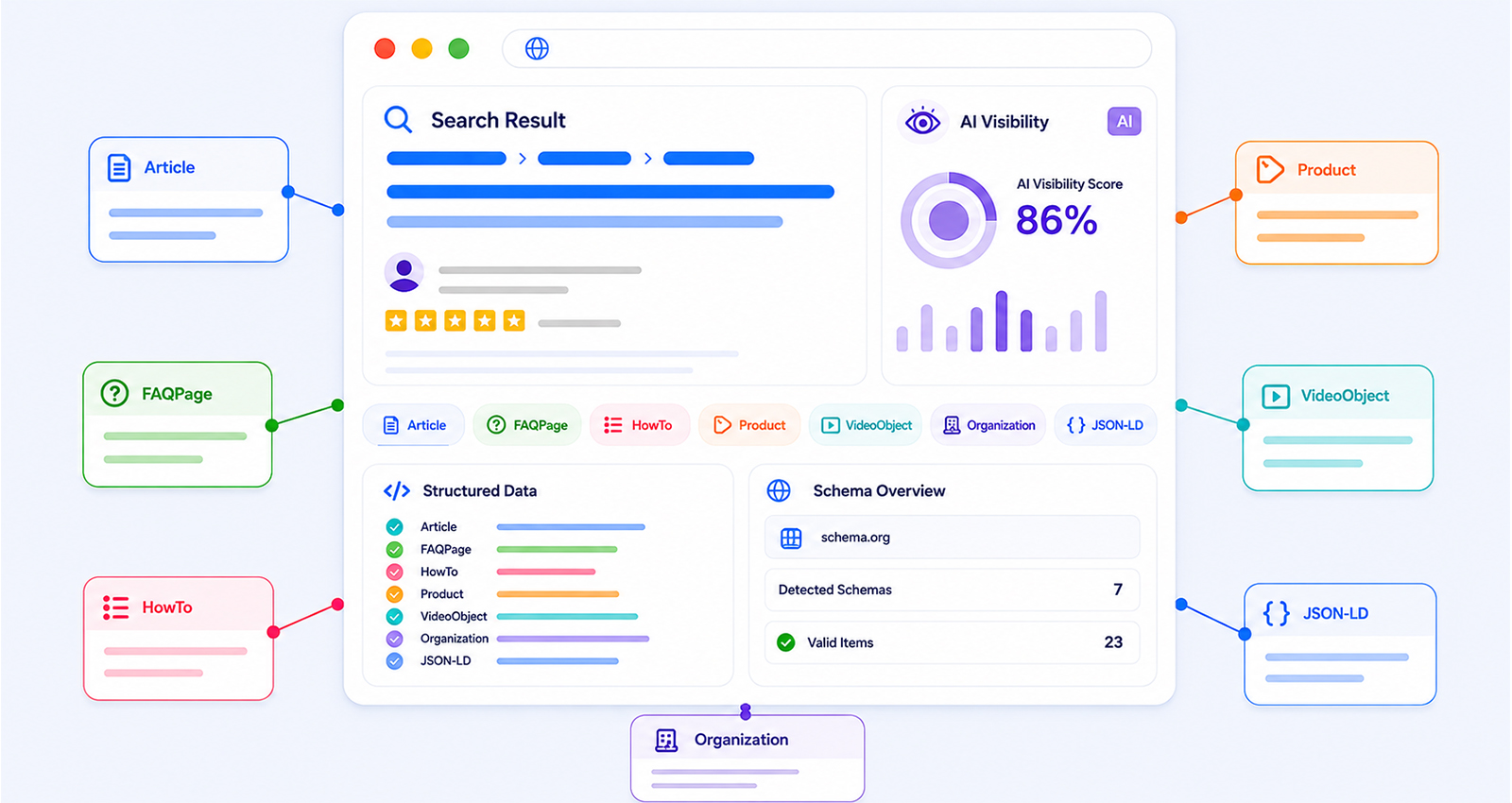
Search engines rely on structured data to verify what’s on your page. When the schema is accurate, it strengthens confidence. When it’s outdated, it creates inconsistency.
Imagine a service page where pricing has been updated, but the schema still reflects old values. Or a blog post that’s been refreshed, but the dateModified field hasn’t changed. These small gaps can prevent your page from qualifying for rich snippets (rich results) or reduce how often it appears in search features.
Google has been clear about this in its structured data guidelines, schema must match visible content to remain eligible for enhancements.
Over time, an outdated schema can impact:
- Click-through rates (CTR)
- Rich snippet eligibility
- Indexing accuracy
- AI-generated search visibility
Which Schema Fields Should You Update in Squarespace?
Not all schema fields are equally time-sensitive. Some stay accurate for years. Others can become outdated the moment a page is edited. Understanding which fields are most vulnerable is the first step.
1. Date Fields on Blog Posts and Articles
This is one of the most commonly neglected updates. When a blog post is refreshed, the dateModified field in the Article schema should reflect that change.
Google uses this field to assess content freshness. A post with a dateModified from two years ago, even if the content was just updated, doesn’t signal recency to search engines.
{
"@context": "https://schema.org",
"@type": "Article",
"headline": "Squarespace SEO Guide for 2026",
"datePublished": "2024-01-10",
"dateModified": "2026-04-15"
}
That single field update can meaningfully change how a refreshed post is treated in search.
2. Service Details and Pricing
Service pages are among the most frequently changed pages on any business site. Pricing shifts, offerings evolve, service areas expand or narrow. But the Service schema often remains unchanged from the day it was first set up.
If the schema says the service costs $X or covers a specific region, and the page now says something different, that’s a live inconsistency that search engines can detect.
{
"@context": "https://schema.org",
"@type": "Service",
"name": "Squarespace SEO Optimization",
"description": "Comprehensive SEO services for Squarespace websites including schema setup and ongoing updates.",
"areaServed": "United States",
"offers": {
"@type": "Offer",
"price": "499",
"priceCurrency": "USD"
}
}
Any time the page content changes, this schema should be reviewed.
3. FAQ Schema
The FAQ schema is particularly dynamic because businesses frequently add new questions, rewrite existing answers, or remove outdated ones. But the FAQ schema is also one of the highest-impact types; it directly creates the expandable dropdowns that appear in search results.
Every FAQ on the page should have a corresponding entry in the schema. If the page has ten questions and the schema only covers six, that’s both an accuracy problem and a missed opportunity.
4. Product Listings and eCommerce Details
For Squarespace stores, product details change regularly, prices update, availability changes, and new variants are added. A product schema that doesn’t reflect the current state of a listing can create compliance issues with Google’s product-rich result requirements.
How to Update Schema Markup in Squarespace: Step-by-Step
Squarespace automatically generates some basic structured data, but custom schema updates and advanced schema management still require manual implementation through code injection or automation tools. Here’s how to do it correctly, without breaking anything.
Step 1: Identify Which Pages Need Updates
Start by listing every page on the site that has schema markup attached to it. Common candidates include:
- Blog posts that have been recently refreshed
- Service or product pages where details have changed
- FAQ pages with new or removed entries
- Contact or local business pages where hours or info have changed
If the site was set up with schema already, check when it was last reviewed. Any page whose content has changed since the schema was added is a candidate for an update.
Step 2: Access the Header Code Injection in Squarespace
This is where all JSON-LD schema lives in Squarespace. To find it:
- Log in to the Squarespace dashboard
- Navigate to the specific page to be updated
- Click Pages in the left sidebar, then hover over the page and click the settings gear icon
- In the page settings panel, scroll down to find Advanced
- Click on Advanced to expand it → the Header Code Injection field is here
- The existing schema will appear inside a
<script type="application/ld+json">tag
This is where all edits are made. Do not delete the script tags themselves, only modify the JSON content between them.
Important: If the site has global schema injected through Settings → Advanced → Code Injection, those blocks need to be updated separately from page-level schema. Both exist independently, and both need to be accurate.
Step 3: Edit Only the Fields That Have Changed
There’s no need to rewrite the entire schema block on every update. The goal is to locate the specific fields that are now inaccurate and update those values.
For a blog post that was refreshed this week:
{
"@context": "https://schema.org",
"@type": "Article",
"headline": "Complete Squarespace SEO Checklist",
"author": {
"@type": "Person",
"name": "Jordan Lee"
},
"datePublished": "2024-03-01",
"dateModified": "2026-05-10",
"description": "An updated guide to on-page SEO for Squarespace websites, covering schema, metadata, and site structure."
}
Only the dateModified and description fields need to be changed here. Everything else stayed the same.
For an FAQ page where a new question was added:
{
"@context": "https://schema.org",
"@type": "FAQPage",
"mainEntity": [
{
"@type": "Question",
"name": "How long does Squarespace SEO take to show results?",
"acceptedAnswer": {
"@type": "Answer",
"text": "Most Squarespace sites begin to see measurable improvements within 60 to 90 days of implementing proper on-page SEO, schema markup, and consistent content updates."
}
},
{
"@type": "Question",
"name": "Does Squarespace support JSON-LD schema?",
"acceptedAnswer": {
"@type": "Answer",
"text": "Yes. JSON-LD schema can be added to any Squarespace page through the Header Code Injection field in page settings."
}
},
{
"@type": "Question",
"name": "Can schema markup improve click-through rates?",
"acceptedAnswer": {
"@type": "Answer",
"text": "Yes. Rich snippets generated from accurate schema markup can significantly increase CTR by making search listings more informative and visually distinctive."
}
}
]
}
Each question-answer pair in the mainEntity array corresponds directly to a visible FAQ on the page. If questions are added to the page, they get added here too.
Step 4: Validate the Schema Before Saving
This step gets skipped more often than it should, and it’s where most schema problems originate. Even a single misplaced comma or unclosed bracket in JSON will cause the entire schema block to be ignored by search engines.
Before saving any updates, run the new schema through a validator:
- Google Rich Results Test: This tool shows exactly which rich result types the schema qualifies for and flags any errors that would disqualify it.
- Schema.org Validator: This checks compliance with the Schema.org specification itself, which is useful for catching structural issues the Google tool might miss.
Paste the updated JSON-LD directly into either tool before saving it back to Squarespace. This takes less than a minute and prevents hours of troubleshooting later.
Step 5: Save and Request Re-indexing
Once the schema is validated and saved, the update needs to reach Google. For pages that are already indexed, submitting them through Google Search Console speeds up the process.
- Open Google Search Console
- Paste the page URL into the top search bar
- Click Request Indexing
This signals to Google that the page has been updated and should be recrawled. Rich result eligibility is typically re-evaluated within a few days of the fresh crawl.
Why Keeping Schema Markup Updated Matters for SEO
Squarespace websites are rarely static. Content evolves regularly, especially for blogs, service-based businesses, and eCommerce pages.
The problem is that the schema doesn’t update automatically unless it’s set up to do so. This creates a gap between what users see and what search engines understand.
Over time, this mismatch can lead to:
- Outdated search listings
- Reduced trust signals
- Missed opportunities for rich snippets
That’s why schema needs to be treated as part of your content workflow.
Common Schema Update Mistakes to Avoid
Knowing the right steps is only half of it. There are a few mistakes that consistently cause problems when updating the schema in Squarespace.
- Updating schema without updating the page (or vice versa): Schema and visible content need to match. If pricing is updated in the schema but not on the page, Google will flag the inconsistency. Both need to change together.
- Using the wrong schema type for the page: A page about a service should use the Service schema. A blog post should use Article or BlogPosting. Using the wrong type means search engines can’t properly categorize the content, even if the data itself is accurate.
- Forgetting nested entities: In the Product schema, the offers object contains its own fields. In the LocalBusiness schema, address is a nested PostalAddress type. Updating the parent without checking nested fields is a common source of stale data.
- Not re-validating after updates: Every edit has the potential to introduce a syntax error. Running validation after every change, not just the first time, is the safest approach.
How Often Should Schema Markup Be Reviewed?
There’s no universal schedule, but there are logical triggers that make schema review necessary.
Any time a page’s content is edited significantly, the schema for that page should be reviewed. That includes refreshing blog post statistics, changing service descriptions, updating pricing, adding FAQs, or modifying business hours.
For sites with frequent content updates, active blogs, service businesses with changing offerings, or eCommerce stores, a monthly schema audit is a reasonable baseline. For more static sites, a quarterly review is usually sufficient.
How to Automate Schema Markup Updates in Squarespace
Manual schema management works for small sites or sites that change infrequently. But as a site grows — more pages, more frequent updates, more schema types — manual updates become a bottleneck.
This is where automation becomes valuable. Rather than manually opening each page’s code injection, editing the JSON, and re-validating, an automated Squarespace schema tool can handle this process in the background.
What Schema Automation Tools Do for Squarespace Sites
A Squarespace-compatible schema tool monitors content changes and keeps structured data in sync automatically. When a product price changes, the schema updates. When a new FAQ is added, the schema adds the corresponding entry. When a blog post is refreshed, the dateModified field reflects that immediately.
This kind of automation removes the dependency on manual review cycles and ensures schema accuracy stays consistent even as the site scales.
Key Benefits of Schema Automation
- Eliminates human error: Manual JSON editing is prone to syntax mistakes. Automated tools generate valid schema programmatically, reducing the risk of silent failures.
- Keeps schema current without workflow overhead: Content teams can update pages without needing to separately manage schema. The two stay in sync automatically.
- Scales with site growth: A site with fifty pages can be managed manually. A site with five hundred pages cannot. Automation is the practical solution at scale.
- Improves rich result consistency: When the schema is always accurate, rich snippet eligibility stays stable rather than fluctuating based on when manual updates last happened.
SEO Benefits of Keeping Schema Markup Updated
The impact of maintaining accurate schema isn’t always immediate, but it compounds over time.
Rich snippets appear more consistently in search results, which makes listings visually stand out. Higher-quality listings generate better CTR, which sends positive engagement signals back to Google. Indexing becomes more accurate, which helps pages appear for the right queries. Structured data can help AI-powered search systems better interpret page context and key information.
None of these benefits is dramatic on its own, but together they represent a meaningful improvement in how well a Squarespace site performs in search and how that performance holds up as content evolves.
Conclusion
Keeping schema markup updated in Squarespace is an important part of maintaining accurate SEO signals and consistent search visibility. As content changes over time, structured data should stay aligned with the visible information on the page to maintain rich result eligibility and improve indexing accuracy.
Whether handled manually or through automation, regular schema updates help ensure search engines always understand the most current version of your website.
FAQs
Q1: How often should schema markup be updated?
The schema should be updated whenever the content it describes changes. For active sites, a monthly review is a reasonable habit. For more static sites, quarterly checks are usually enough.
Q2: Can outdated schema markup hurt SEO rankings?
Outdated schema doesn’t directly cause ranking penalties, but it reduces rich snippet eligibility, lowers CTR, and weakens the accuracy signals that search engines use to categorize pages — all of which can indirectly affect performance over time.
Q3: Where exactly is schema markup added in Squarespace?
Schema markup is added through the Header Code Injection field, which is found under the Advanced settings of each individual page. Global schema can also be added through Settings → Advanced → Code Injection.
Q4: What happens if there’s a syntax error in the schema?
A syntax error causes the entire schema block to be ignored by search engines. There’s no visible error on the page, but the structured data isn’t being read. This is why validating the schema before saving is important.
Q5: Do blog post updates require changes to the Article schema?
Yes. At a minimum, the dateModified field should be updated any time a blog post is meaningfully revised. This helps search engines recognize the content as fresh.
Q6: Does updating the schema automatically trigger a Google recrawl?
No. Saving updated schema in Squarespace doesn’t automatically signal Google to recrawl the page. Submitting the URL through Google Search Console’s URL Inspection tool and clicking Request Indexing is the fastest way to get the update reflected in search.
Q7: What tools are available to test schema after updating it?
Google Rich Results Test and the Schema.org Validator are the two most reliable options. Both accept direct JSON-LD input and flag errors clearly.








 Wix Schema
 Squarespace Schema
 BigCommerce Schema
 Shopify Schema
 Hubspot Schema
 Webflow Schema
 GoHighlevel Schema
 Duda Schema
 Weebly Schema
 ClickFunnel Schema