

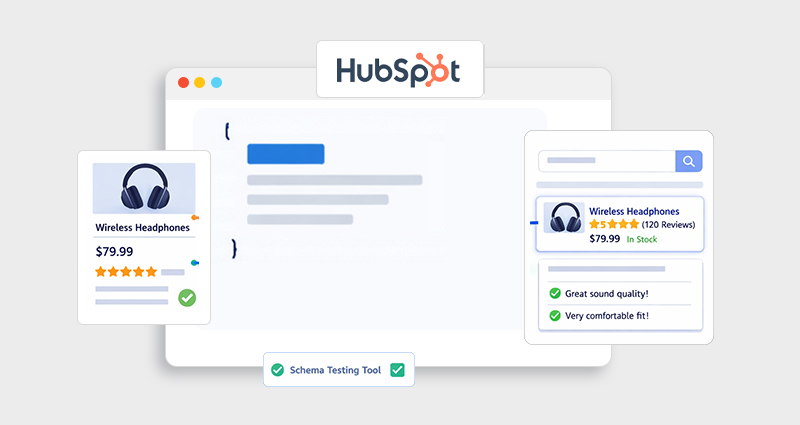
Getting your product pages noticed in search results isn’t just about good copy or keywords anymore. If search engines can’t clearly interpret your product details, your pages risk getting overlooked, no matter how strong your content is.
This is where HubSpot product schema markup makes a real difference. By adding structured data in JSON-LD format, you give search engines like Google a clear, organized view of your product, its price, availability, and even customer reviews. That clarity is what allows your listings to qualify for rich results, making them more informative and visually compelling in search.
When implemented correctly, this isn’t just a technical upgrade, it’s a visibility boost. Your product pages become easier to understand, more clickable, and better positioned to stand out in competitive search results.
What Is HubSpot Product Schema Markup?
HubSpot product schema markup is a type of structured data that describes product information in a machine-readable format.
Instead of relying on HTML alone, you explicitly define product attributes like:
- Product name
- Description
- Price
- Availability
- Reviews and ratings
This is typically done using JSON-LD (JavaScript Object Notation for Linked Data), which is Google’s preferred format.
Example: Basic HubSpot Product JSON-LD
<script type="application/ld+json">
{
"@context": "https://schema.org/",
"@type": "Product",
"name": "Wireless Headphones",
"image": "https://example.com/image.jpg",
"description": "High-quality noise-canceling headphones",
"brand": {
"@type": "Brand",
"name": "AudioTech"
},
"offers": {
"@type": "Offer",
"priceCurrency": "USD",
"price": "99.99",
"availability": "https://schema.org/InStock"
}
}
</script>
This is the foundation of product-structured data HubSpot CMS implementations.
Why You Should Add Product Schema in HubSpot
Implementing HubSpot schema markup goes beyond technical SEO, it directly impacts how your products appear and perform in search results. Instead of relying on plain blue links, you’re giving search engines the context they need to showcase your content more effectively.
1. Unlock HubSpot Rich Snippets
With a properly implemented product schema, your listings can display key details like price, stock status, and customer ratings directly in search results. These HubSpot Rich Snippets make your pages more informative at a glance and help users decide faster, often before they even click.
2. Improve Click-Through Rates
When users can instantly see relevant product details, your listing becomes more compelling than standard results. This added visibility and clarity often translates into higher click-through rates, especially for high-intent searches.
3. Better Search Engine Understanding
Structured data removes ambiguity. Instead of guessing, search engines can clearly interpret your product information, which improves indexing accuracy and helps your pages rank more appropriately for transactional queries.
4. AI & Voice Search Optimization
As search evolves, structured data plays a bigger role in how AI systems interpret and deliver content. Product schema helps voice assistants and AI-driven search engines extract precise answers, making your content more future-ready.
Understanding HubSpot Schema Markup Implementation
Unlike platforms such as Shopify or plugin-heavy ecosystems like WordPress, HubSpot doesn’t automatically generate detailed product schema for every page.
This means you need to either manually add schema or set up a scalable, dynamic solution, depending on your site size.
Where to Add Schema in HubSpot
You have a few reliable options depending on your setup:
- Page Header (Advanced Settings): Ideal for adding static JSON-LD to individual pages
- Global Header/Footer: Useful for site-wide schema elements
- CMS Modules or Templates: Best for a dynamic schema across multiple product pages
- Choosing the right method depends on whether you’re managing a handful of products or scaling across an entire catalog.
How to Add Product Schema in HubSpot (Step-by-Step)
Setting up HubSpot product schema markup doesn’t have to be complicated. The key is to follow a structured approach and validate everything before publishing.
Step 1: Identify Your Product Page Data
Start by gathering all essential product details. This ensures your schema is both complete and eligible for rich results.
Focus on:
- Product name and description
- Price and currency
- Availability (In stock, Out of stock)
- Product images
- Reviews and ratings (if available)
Incomplete data is one of the most common reasons schema fails validation.
Step 2: Generate JSON-LD Schema
Next, convert your product data into structured format.
You can:
- Use a JSON-LD schema generator for quick setup
- Try a schema markup generator for templates
- Write it manually for full control and customization
Otherwise, instead of building everything manually, you can also use a HubSpot Schema Markup tool to generate accurate product schema faster and with fewer errors.
Step 3: Add Schema to HubSpot
Once your JSON-LD is ready, it’s time to implement it on your page.
In HubSpot:
- Open your product page
- Go to Settings
- Navigate to Advanced
- Paste your schema code into the Head HTML section
This completes the core HubSpot schema markup implementation, making your structured data accessible to search engines.
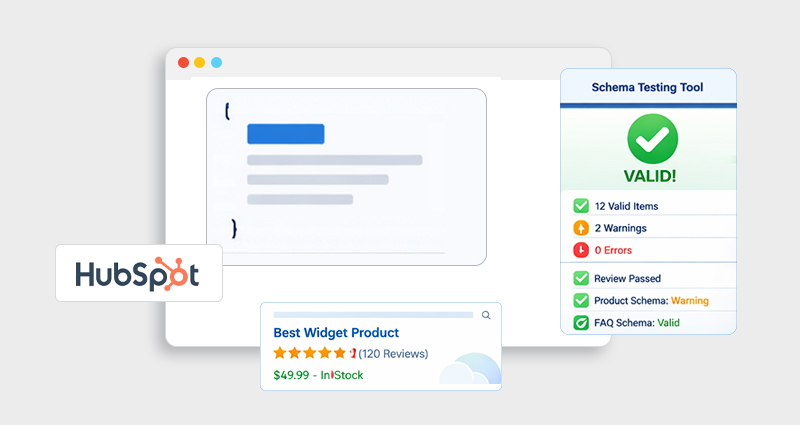
Step 4: Test Your Schema Markup
Before publishing, always validate your markup to avoid errors that could prevent rich results.
Use tools like:
- Google Rich Results Test
- JSON-LD schema validator
- Schema markup validator
Testing ensures your HubSpot schema markup testing process is clean, accurate, and aligned with search engine requirements, reducing the risk of missed opportunities.
Dynamic Product Schema for HubSpot CMS (Advanced Setup)
If you manage multiple products, manually adding schema isn’t scalable.
Solution: Dynamic Schema with HubDB or CMS Fields
You can:
- Store product data in HubDB
- Use HubL (HubSpot templating language)
- Inject dynamic JSON-LD into templates
Example Concept:
<script type="application/ld+json">
{
"@type": "Product",
"name": "{{ product.name }}",
"price": "{{ product.price }}"
}
</script>
This approach is essential for large-scale HubSpot ecommerce schema markup.
Best Schema Types for HubSpot Websites
While this guide focuses on product schema, relying on a single schema type limits your SEO potential. A well-structured HubSpot schema markup strategy uses multiple schema types to give search engines a complete understanding of your website.
Key Schema Types to Use
-
Product Schema
Essential for e-commerce pages. It highlights pricing, availability, and reviews, making it the backbone of any HubSpot ecommerce schema markup setup.
-
FAQ Schema
Ideal for answering common questions directly in search results, often helping you capture more SERP real estate.
-
Article Schema
Best for blog content, improving visibility in news and content-rich search features.
-
Organization Schema
Strengthens your brand presence by defining your business details, logo, and identity.
When these schemas work together, they create a more complete structured data ecosystem, improving both search visibility and contextual relevance.
Common Mistakes in HubSpot Product Schema Markup
Even a well-implemented schema can fail if small but critical details are overlooked. These mistakes often prevent your content from qualifying for rich results.
1. Schema Doesn’t Match Visible Content
Search engines cross-check schema with on-page content. If your markup includes details not visible to users, it may be ignored or flagged.
2. Missing Required Fields
An incomplete schema is one of the most common issues. For product schema, fields like name, price, and availability are mandatory for eligibility in rich results.
3. Incorrect JSON Formatting
JSON-LD must be perfectly structured. A missing comma or bracket can break the entire schema, making it unreadable for search engines.
4. Duplicate or Conflicting Schema
Adding multiple product schemas or mixing formats incorrectly can confuse search engines, reducing effectiveness instead of improving it.
5. Not Testing the Schema Before Publishing
Skipping validation often leads to unnoticed errors. Without proper HubSpot schema markup testing, even correctly written schema may fail to deliver results.
How to Get Rich Snippets in HubSpot for Products
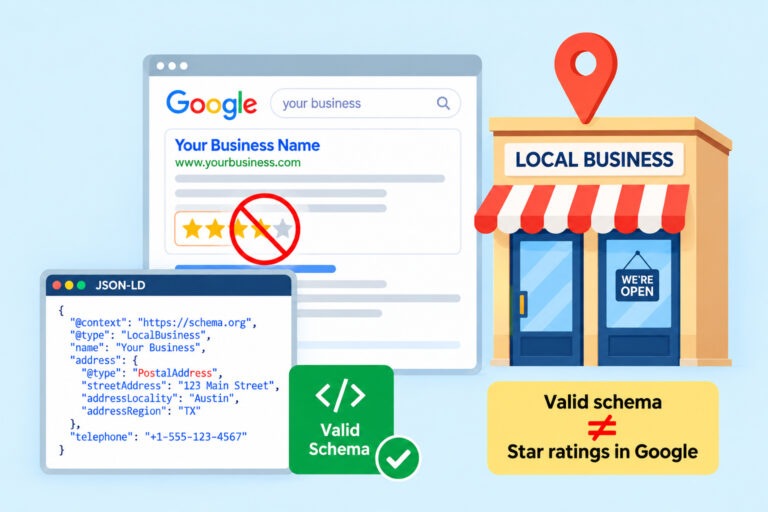
Adding HubSpot product schema markup is a requirement, but not a guarantee, for rich snippets. Eligibility depends on both technical accuracy and overall page quality.
How to Maximize Your Chances
- Use a fully valid and complete Product schema
- Include reviews and ratings where possible
- Ensure your page loads quickly and is mobile-friendly
- Follow structured data guidelines from Google
It’s also important to remember that Google evaluates multiple factors, including content quality and trust signals, before displaying HubSpot rich snippets product results.
In short, schema opens the door, but your content and site quality determine whether you walk through it.
Conclusion
Implementing HubSpot product schema markup is no longer optional, it’s a foundational part of modern SEO.
When done correctly, it:
- Enhances visibility with HubSpot Rich Snippets
- Improves click-through rates
- Helps search engines and AI systems understand your content
The key is simple:
Use accurate data, implement clean JSON-LD, and validate everything before publishing.
Once you get this right, your product pages won’t just rank, they’ll stand out.
FAQs
Q1. What is HubSpot product schema markup?
It’s structured data added to product pages in HubSpot that helps search engines understand product details like price, availability, and reviews.
Q2. How do I add product schema in HubSpot?
You can add JSON-LD code in the Head HTML section of your page settings or via CMS templates.
Q3. Does HubSpot automatically add schema markup?
HubSpot adds basic schema (like organization data), but product schema must usually be added manually or dynamically.
Q4. What format should I use for HubSpot schema markup?
Use JSON-LD, as it’s recommended by Google and easiest to implement.
Q5. How do I test HubSpot schema markup?
Use tools like:
- Google Rich Results Test
- JSON-LD schema validator
- Schema markup validator
Q6. Why isn’t my product showing rich snippets?
Possible reasons:
- Missing required fields
- Invalid schema
- Google hasn’t indexed the page yet
- Not eligible for rich results
Q7. Can I automate schema in HubSpot CMS?
Yes. Use HubDB + HubL to create dynamic schema for multiple products.
Q8. What are the best schema types for HubSpot websites?
Product, FAQ, Article, and Organization schemas are the most effective.
Q9. Is schema markup important for SEO in 2026?
Yes. It’s critical for AI search, voice search, and rich results visibility.






 Wix Schema
 Squarespace Schema
 BigCommerce Schema
 Shopify Schema
 Hubspot Schema
 Webflow Schema
 GoHighlevel Schema
 Duda Schema
 Weebly Schema