

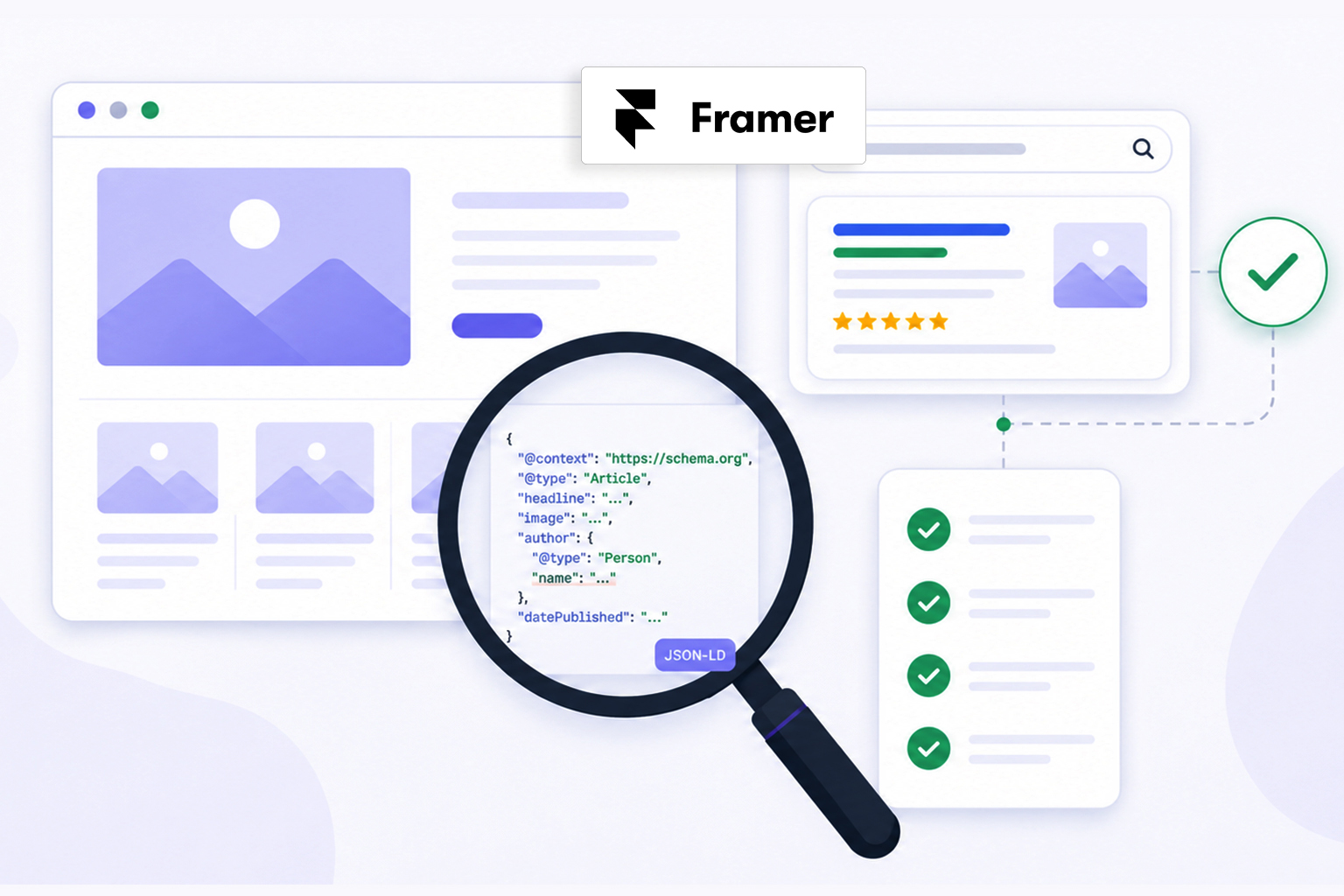
Framer has become a popular website builder for startups, SaaS companies, agencies, and creators because of its clean design workflow and impressive performance. But while building an attractive website is easy, making sure search engines fully understand your content requires another important layer: schema markup.
Adding structured data is only the first step. You also need to check Framer schema markup to confirm that search engines can read it correctly. Even a small syntax error, missing required property, or mismatch between your page content and JSON-LD can prevent your structured data from being eligible for rich results.
This guide explains exactly how to perform Framer schema validation, identify common issues, and verify that your structured data is implemented correctly.
Quick Framer Schema Validation Checklist
- View the JSON-LD generated on your Framer page.
- Run a Framer structured data validation using Google’s Rich Results Test.
- Validate the JSON-LD against Schema.org standards.
- Ensure all required properties are present.
- Confirm your structured data matches visible page content.
- Fix syntax errors, warnings, and unsupported schema types.
- Test every important page individually after publishing.
- Repeat validation whenever content or templates change.
Why Schema Validation Matters for Framer Websites
Many website owners assume that once schema markup is added, search engines will automatically understand it perfectly. Unfortunately, that isn’t how structured data works. Even well-written JSON-LD can fail because of:
- Invalid syntax
- Missing required fields
- Unsupported schema types
- Incorrect nesting
- Content mismatches
- Duplicate schema blocks
Without proper Framer schema markup validation, these issues may go unnoticed for months. Google recommends validating structured data before and after publishing because syntax errors can make the markup completely unreadable, while warnings may reduce eligibility for certain rich results.
How Framer Handles Schema Markup
Unlike some CMS platforms that automatically generate extensive structured data, Framer gives you flexibility over how schema markup is added . Depending on your website setup, JSON-LD may come from custom code, SEO integrations, or CMS templates.
For example, you may add schema by:
- Inserting JSON-LD in Site Settings → Custom Code
- Adding page-specific schema through a page’s custom code settings
- Using a third-party schema solution or automation tool
- Dynamically generating schema for Framer CMS collections such as blog posts
Because schema can come from multiple sources, it’s important to check Framer schema markup on the published website rather than assuming it’s been implemented correctly. This also helps identify duplicate or outdated schema before search engines crawl your pages.
What Is Framer Schema Markup?
Before learning how to validate it, it’s important to understand what you’re actually checking. Framer schema markup is structured data (usually written in JSON-LD) added to your website to help search engines understand your pages. Depending on your website, your schema may include:
| Website Type | Recommended Schema Types |
|---|---|
| Business website | Organization, LocalBusiness |
| SaaS | SoftwareApplication |
| Blog | Article, BlogPosting |
| Landing page | WebPage |
| FAQ page | FAQPage |
| Product page | Product |
Adding more schema doesn’t automatically improve SEO. The priority is using accurate schema that reflects your actual page content.
How to Check Framer Schema Markup (Step-by-Step)
Once your schema markup is added to your Framer website, the next step is to verify that it’s implemented correctly. Follow these steps to check Framer schema markup, identify errors, and ensure your structured data is eligible for rich results.
Step 1: Open Your Published Framer Page
Always validate the published Framer URL, not the editor preview or staging version. Search engines crawl your live website, so testing unpublished changes won’t accurately reflect what Google sees. If you’ve recently published updates, refresh the page or clear your browser cache to ensure you’re validating the latest version.
Step 2: Confirm the JSON-LD Appears on the Published Framer Page
After publishing your Framer site, open the live page in Chrome.
Right-click the page and choose Inspect , then search for application/ld+json within the HTML. Alternatively, you can open View Page Source (Ctrl + U) and search for ld+json.
If you locate a JSON-LD script, your schema has been rendered on the page. If you can’t find one, check whether your custom code was published correctly or whether your schema implementation is limited to the editor rather than the live site.
This simple check helps confirm that search engines can actually access your structured data.
Step 3: Run a Framer Rich Results Test
Next, run your page through Google’s Rich Results Test.
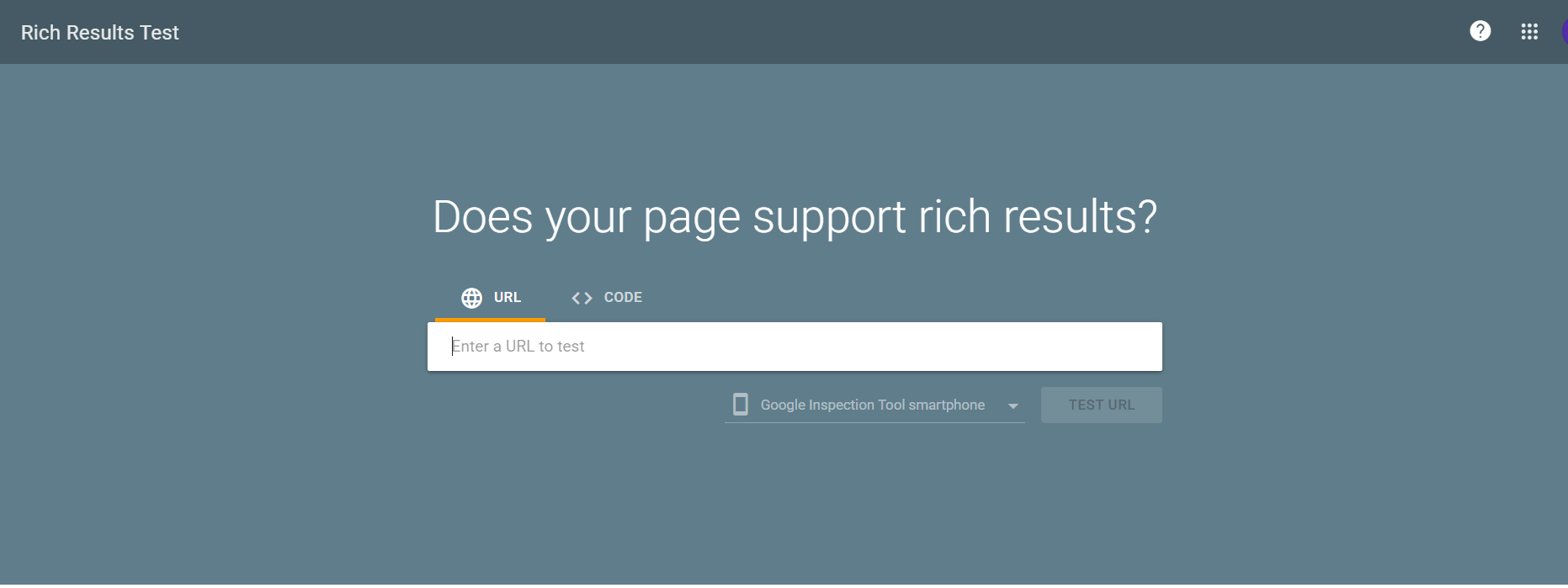
This checks:
- Rich result eligibility
- Required properties
- Missing fields
- Parsing errors
- Unsupported schema
Passing this test doesn’t guarantee rich results, but it confirms your markup is technically eligible for Google’s supported rich result features.
Step 4: Perform Framer JSON-LD Validation
Google only validates schema types used for rich results. For complete Framer JSON-LD validation, also validate against Schema.org specifications.
This identifies:
- Incorrect property names
- Invalid nesting
- Unsupported values
- Deprecated properties
- General Schema.org compliance
This is an important part of any professional Framer structured data checker workflow.
Step 5: Compare Schema with Visible Content
One of Google’s biggest structured data guidelines is simple: Your schema should describe content users can actually see.
For example, if your Product schema includes:
- Price
- Reviews
- Availability
Those details should also appear visibly on the page. Hidden or misleading schema may result in manual actions.
Step 6: Fix Errors Before Warnings
When you validate Framer schema markup, you’ll typically see two categories:
| Issue | Priority |
|---|---|
| Errors | Fix immediately |
| Warnings | Fix if applicable |
Errors often prevent structured data from working. Warnings usually indicate recommended but optional properties.
Step 7: Re-Test After Every Major Update
Every template update, CMS change, redesign, or content revision can affect structured data. Always test Framer schema markup again after:
- redesigning pages
- changing templates
- adding CMS collections
- modifying SEO settings
- installing new integrations
Schema validation should become part of your publishing workflow—not a one-time task.
Don’t Forget Framer CMS Pages
If your website uses Framer CMS Collections for blogs, case studies, documentation, or portfolios, don’t validate just one page.
Instead, check multiple collection items to confirm that the same structured data is generated correctly across every dynamic page. A CMS template error can affect dozens of pages at once, making this an important part of Framer schema validation.
Common Framer Schema Markup Errors
Even if your JSON-LD looks correct, small implementation mistakes can prevent search engines from interpreting it properly. Here are the most common Framer schema markup errors to look for when validating your website.
Missing Required Properties
Some schema types require specific properties to be valid. For example, Product schema needs fields such as name and offers, while Article schema typically requires headline, author, and datePublished. Missing required properties can make your schema ineligible for rich results.
Invalid JSON-LD Syntax
A missing comma, quotation mark, or bracket is enough to break your entire JSON-LD block. This is especially common when manually adding or editing schema in Framer’s Custom Code section, so always validate your markup after publishing.
Duplicate Schema Markup
Duplicate schema is a common issue on Framer sites. For example, you might add an Organization schema in Site Settings → Custom Code and unintentionally add another on an individual page or through a CMS template. Consolidate duplicate markup so search engines receive a single, consistent version.
Using the Wrong Schema Type
Your schema should accurately describe the page’s purpose. For example, don’t use Product schema on a service page or FAQPage schema unless the page contains genuine question-and-answer content. Choosing the correct schema type helps search engines understand your content more accurately.
Structured Data Doesn’t Match Visible Content
Google expects your structured data to reflect what users actually see. If your schema includes a 4.9-star rating, pricing, or FAQs that aren’t visible on the page, your markup may be ignored or even lead to a manual action. Keep your JSON-LD and on-page content in sync.
Validating the Wrong Framer URL
One of the most common Framer-specific mistakes is testing the editor preview or an older published version instead of the live production URL. Always validate the final published page that search engines can crawl, especially after updating your site or CMS content. This ensures you’re checking the latest version of your schema markup.
Best Practices for Framer Schema Validation
When performing Framer structured data validation, follow these best practices:
- Validate every important page individually.
- Use JSON-LD instead of older structured data formats whenever possible.
- Keep schema synchronized with visible content.
- Avoid adding unsupported or irrelevant schema types.
- Remove duplicate structured data.
- Revalidate after major website changes.
- Monitor Google Search Console for structured data issues.
- Follow Google’s structured data documentation instead of relying solely on third-party generators.
- Validate several Framer CMS pages if your content is generated dynamically.
- Avoid inserting the same JSON-LD in both Site Settings and page-level custom code.
- After publishing updates in Framer, verify that the live page reflects your latest schema before running validation.
FAQs
Q1: How do I check Framer schema markup?
Publish your Framer page, inspect the JSON-LD, validate it with Google’s Rich Results Test, check Schema.org compliance, compare it with visible content, fix any issues, and re-test after updates.
Q2: Does Framer have a built-in schema markup checker?
No. Framer doesn’t include a built-in Framer schema markup checker or schema validation tool. After publishing your website, you should use Google’s Rich Results Test and the Schema.org Validator to verify that your structured data is valid and eligible for rich results.
Q3: How often should I validate Framer schema markup?
Validate your structured data whenever you publish new pages, redesign templates, update CMS content, or make significant SEO changes.
Q4: Why does my Framer schema pass validation but not show rich results?
Passing validation means your markup is technically correct, but it doesn’t guarantee that Google will display rich results. Google also considers factors such as page quality, eligibility, crawl status, and its structured data guidelines.
Q5: What are the most common Framer schema markup errors?
Common issues include missing required properties, invalid JSON syntax, duplicate schema blocks, incorrect schema types, and structured data that doesn’t match visible page content.
Q6: Can I use multiple schema types on one Framer page?
Yes. Multiple schema types are acceptable when they accurately represent the page and are properly connected using Schema.org relationships.
Q7: Does Framer automatically generate schema markup?
Framer provides SEO features, but the availability and depth of structured data depend on your setup, integrations, and any custom JSON-LD you add. Always verify what is actually rendered on the published page.
Q8: Is Framer JSON-LD validation different from Schema.org validation?
Not really. Framer JSON-LD validation focuses on the JSON-LD implemented on your Framer site, while Schema.org validation checks whether that markup follows the Schema.org vocabulary and structure correctly.









 Wix Schema
 Squarespace Schema
 BigCommerce Schema
 Shopify Schema
 Hubspot Schema
 Webflow Schema
 GoHighlevel Schema
 Duda Schema
 Weebly Schema
 ClickFunnel Schema