

Adding schema markup to your Weebly website is only half the job. The real value comes from making sure search engines can actually read and understand it.
Many website owners assume that once JSON-LD is added, everything works automatically. In reality, even a small mistake, such as a missing required property, incorrect schema type, or outdated information, can prevent your structured data from qualifying for rich results.
That’s why it’s important to check Weebly schema markup regularly. Whether you run a local business, an online store, or a blog, validating your structured data helps ensure search engines receive accurate information about your content.
This guide explains exactly how to perform Weebly schema validation, identify common errors, and verify that your markup is eligible for Google’s rich results while remaining useful for modern AI-powered search engines.
Weebly Schema Markup Validation Checklist
- Publish your Weebly page and verify where the schema markup has been added.
- Confirm the JSON-LD appears in the page source
(application/ld+json). - Test the page using Google’s Rich Results Test.
- Validate the JSON-LD with the Schema.org Validator.
- Fix any errors, warnings, or missing required properties.
- Ensure the structured data matches the visible page content.
- Re-test after every major website update.
Why You Should Check Weebly Schema Markup
Schema markup is a standardized vocabulary that helps search engines understand the meaning of your content rather than simply reading the text on the page.
For example, instead of guessing whether a number represents a product price or a phone number, structured data explicitly labels that information.
Properly implemented Weebly schema markup can help search engines display:
- Product information
- Business details
- FAQs
- Reviews
- Events
- Articles
- Breadcrumbs
However, these enhancements only become available when your markup passes validation. Regularly performing a Weebly structured data validation ensures that:
- Search engines can interpret your content correctly.
- Required properties are present.
- Rich result eligibility is maintained.
- AI search systems receive accurate, structured information.
- Future website updates do not accidentally break your schema.
Although schema markup itself is not a direct ranking factor, Google explains that structured data helps search engines better understand content and can make pages eligible for rich results, which may improve visibility and click-through rate when displayed in search.
How Schema Markup Works on Weebly
Unlike some website builders, Weebly provides limited built-in structured data. Depending on your theme, eCommerce features, integrations, and website configuration, it may generate basic structured data such as Website or Organization markup.
However, support varies, so it’s always best to inspect the published page rather than assume schema has been implemented automatically.
If you’re using custom code, it’s important to know exactly where your markup has been placed before you check Weebly schema markup. Incorrect placement, duplicate implementations, or outdated code can all prevent search engines from interpreting your structured data correctly.
Because every Weebly site is configured differently, Weebly schema validation should always be performed after publishing new pages or updating existing ones.
Step-by-Step Guide to Check Weebly Schema Markup
The easiest way to check Weebly schema markup is to verify where the structured data has been added, confirm that it appears in your page source, and then validate it using a trusted Weebly schema markup checker such as Google’s Rich Results Test, along with the Schema.org Validator. Following these steps ensures your markup is both technically correct and eligible for rich results.
Step 1: Verify Where Your Schema Is Added in Weebly
Before you validate Weebly schema markup, identify where the structured data has been implemented. Depending on your setup, the JSON-LD may be added through:
- Custom Header Code in Weebly’s SEO or page settings
- Theme header files (if you’ve customized your theme)
- Embed Code elements on specific pages
- A third-party schema tool or generator
- Weebly eCommerce product pages, depending on your store configuration
Knowing where your schema originates makes it easier to troubleshoot missing or duplicate markup. Once you’ve confirmed its location, publish the page so you can check Weebly schema markup on the live website.
Confirm That the Schema Is Present
Before running any validator, open your published Weebly page, select View Page Source, and search for “application/ld+json”.
If you see one or more JSON-LD blocks, your schema is ready for validation. If not, review your implementation before proceeding, as the issue is likely with how the markup was added rather than the validation tool itself.
Step 2: Run Google’s Rich Results Test
Google’s Rich Results Test evaluates whether your page is eligible for supported rich results. Paste your page URL into the tool. Because Weebly publishes static page HTML, always test the live URL after clicking Publish rather than validating an unpublished draft. Otherwise, the validation results may not reflect your latest schema changes.
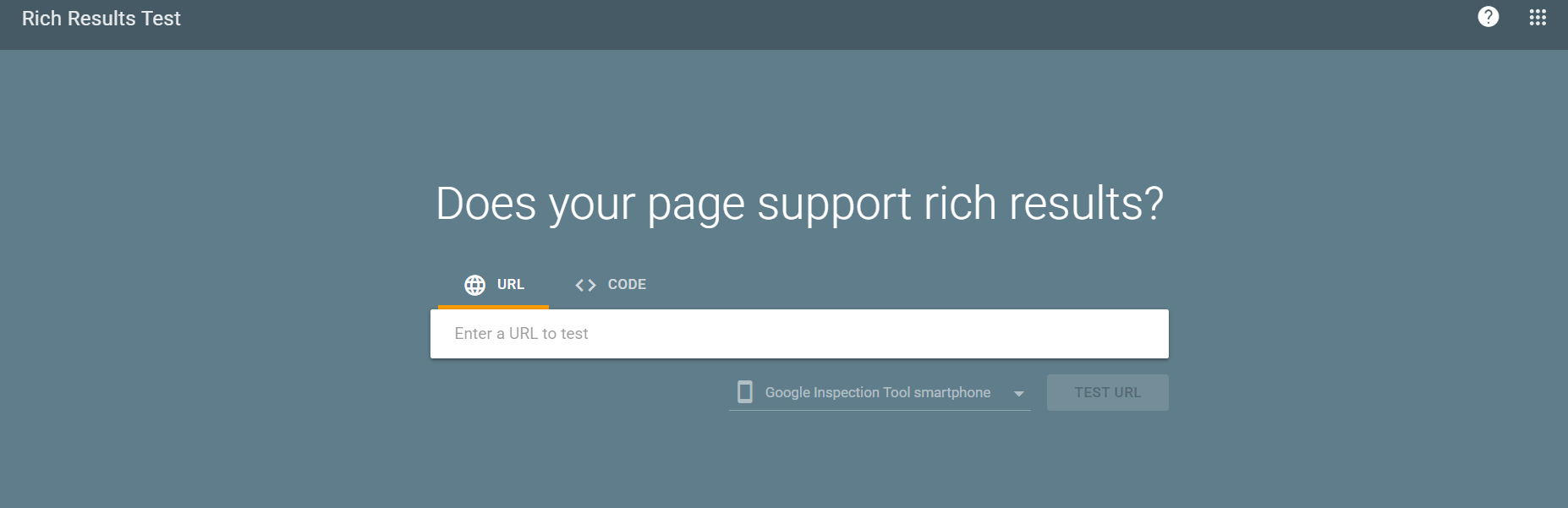
The report shows:
- Detected schema types
- Rich result eligibility
- Errors
- Warnings
- Required improvements
This is the first tool you should use when you test Weebly schema markup.
Step 3: Validate with Schema.org Validator
Google focuses on rich result eligibility. The Schema.org Validator checks whether your structured data follows Schema.org specifications.
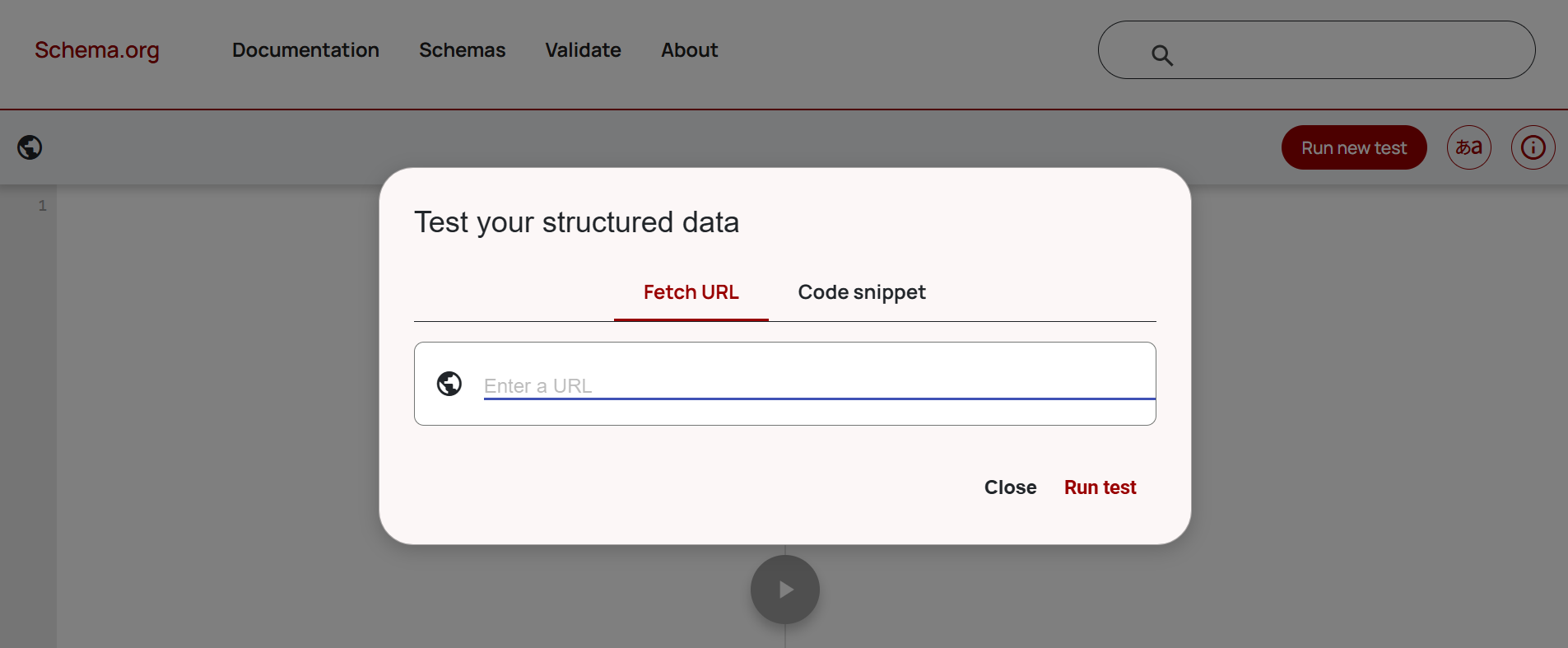
This helps identify:
- JSON-LD syntax issues
- Invalid properties
- Unsupported values
- Schema structure problems
Using both tools provides a more complete schema markup validator workflow.
Step 4: Inspect the JSON-LD
If you added a custom schema through Weebly’s Header Code, Embed Code, or theme files, compare the published JSON-LD with your original implementation to make sure nothing has been altered or removed during publishing.
A simple Product schema looks like this:
{
"@context": "https://schema.org",
"@type": "Product",
"name": "Running Shoes",
"image": "https://example.com/shoes.jpg",
"description": "Lightweight running shoes",
"offers": {
"@type": "Offer",
"price": "89.99",
"priceCurrency": "USD",
"availability": "https://schema.org/InStock"
}
}
Verify that every value matches the visible information on your webpage.
Step 5: Fix Errors Before Warnings
During Weebly schema validation, you’ll usually see:
Errors
These prevent rich result eligibility and should always be fixed first.
Warnings
Warnings don’t necessarily disqualify your markup, but completing recommended properties often improves data quality.
Step 6: Test Again
After making changes:
- Republish the page.
- Run another Weebly rich results test.
- Confirm all critical errors are resolved.
Schema validation should become part of your regular publishing workflow.
Common Weebly Schema Markup Errors
Even when the syntax is valid, implementation mistakes can prevent your structured data from qualifying for rich results. These are some of the most common Weebly schema markup errors to watch for.
JSON-LD Added in the Wrong Location
JSON-LD is commonly placed in the page’s <head>, although Google can also process it when it’s added within the page body, provided it renders correctly. Regardless of where it’s added, the markup should be easy for search engines to detect and should not be placed inside elements that fail to render properly.
Theme Changes Removing Custom Schema
If you’ve added schema directly to your theme files, switching themes or updating templates can accidentally remove your custom JSON-LD. After any design changes, always test the Weebly schema markup again.
Duplicate Organization Schema
Many website owners manually add Organization schema without realizing that another plugin, app, or template is already generating the same markup. Duplicate structured data can confuse search engines and lead to inconsistent results during Weebly structured data validation.
Missing Product Offer Information
For eCommerce websites, Product schema should include Offer details such as price, currency, and availability. Missing these required properties often prevents product-rich results from appearing.
FAQ Schema Doesn’t Match Visible Content
Google expects structured data to reflect what visitors can actually see. If the FAQ schema is present but the questions and answers aren’t displayed on the page, the markup may be ignored.
Placeholder or Outdated Values
Copying schema examples without replacing sample URLs, business names, prices, or descriptions is a surprisingly common mistake. Always review every property before publishing.
Best Tools to Check Weebly Structured Data
There isn’t a dedicated Weebly schema markup checker built into the platform, so most website owners rely on trusted validation tools to inspect and validate their structured data.
| Tool | Best For |
|---|---|
| Google Rich Results Test | Rich result eligibility |
| Schema.org Validator | Schema syntax validation |
| Browser Developer Tools | Viewing rendered JSON-LD |
| Google Search Console | Monitoring structured data issues after indexing |
Understanding Weebly Schema Markup Beyond Validation
Many people focus only on whether the validator displays green checkmarks.
That isn’t the complete picture. Understanding Weebly schema markup means ensuring your structured data accurately represents your content, remains updated as the page changes, and follows Schema.org guidelines.
For example, updating product prices, changing business hours, or removing FAQs should also trigger a schema review. Outdated structured data can create inconsistencies that reduce trust for both search engines and users.
Well-maintained schema also supports emerging AI search experiences, where structured information helps language models understand relationships between entities, products, organizations, and webpages.
While schema alone won’t guarantee you rank in AI search, it provides machine-readable context that complements high-quality content and strong technical SEO.
Best Practices for Weebly Structured Data Validation
Checking the schema shouldn’t be a one-time task. Instead, make it part of your ongoing SEO process. Follow these best practices:
- Validate every important page after publishing.
- Match structured data with visible page content.
- Use only relevant schema types.
- Remove outdated properties promptly.
- Test after redesigns or template changes.
- Monitor Search Console for structured data issues.
- Revalidate whenever major content is updated.
Consistent check Weebly structured data practices help prevent unnoticed issues from affecting search appearance.
Conclusion
Taking a few minutes to check Weebly schema markup can prevent hidden errors from limiting your search visibility. By validating your JSON-LD, fixing implementation issues, and ensuring your structured data accurately reflects your content, you improve your website’s eligibility for rich results and make it easier for search engines to understand your pages.
As your Weebly site grows, regular Weebly structured data validation should become a standard part of your publishing workflow. Accurate, well-maintained schema helps create a stronger technical SEO foundation today while preparing your website for increasingly AI-driven search experiences tomorrow.
Frequently Asked Questions
Q1: Does Weebly automatically add schema markup?
Weebly may generate limited structured data depending on your website theme and built-in features, but advanced schema types such as Product, FAQ, Article, or Local Business often require custom JSON-LD or a dedicated schema implementation.
Q2: Where do I add JSON-LD in Weebly?
Many users add JSON-LD through Weebly’s custom header code, theme files, or embedded code sections. The best location depends on whether the schema should apply site-wide or only to specific pages.
Q3: Can I edit schema markup in Weebly?
Yes. If you’ve implemented custom JSON-LD, you can update or replace it whenever your page content changes. Be sure to run Weebly schema validation after making edits.
Q4: Why isn’t my Weebly schema showing in Google’s Rich Results Test?
The markup may not be published, could contain syntax errors, use an unsupported schema type, or fail to match the visible page content. First, confirm that the JSON-LD appears in the page source before validating it.
Q5: Does Weebly eCommerce include Product schema automatically?
Some Weebly eCommerce configurations may generate basic product structured data, but implementation varies depending on your store setup and theme. It’s always recommended to check Weebly schema markup using validation tools rather than assuming the Product schema is complete.
Q6: How do I check Weebly schema markup?
Publish your page, verify that the JSON-LD appears in the page source, then test it using Google’s Rich Results Test and the Schema.org Validator to identify errors or warnings.









 Wix Schema
 Squarespace Schema
 BigCommerce Schema
 Shopify Schema
 Hubspot Schema
 Webflow Schema
 GoHighlevel Schema
 Duda Schema
 Weebly Schema
 ClickFunnel Schema