

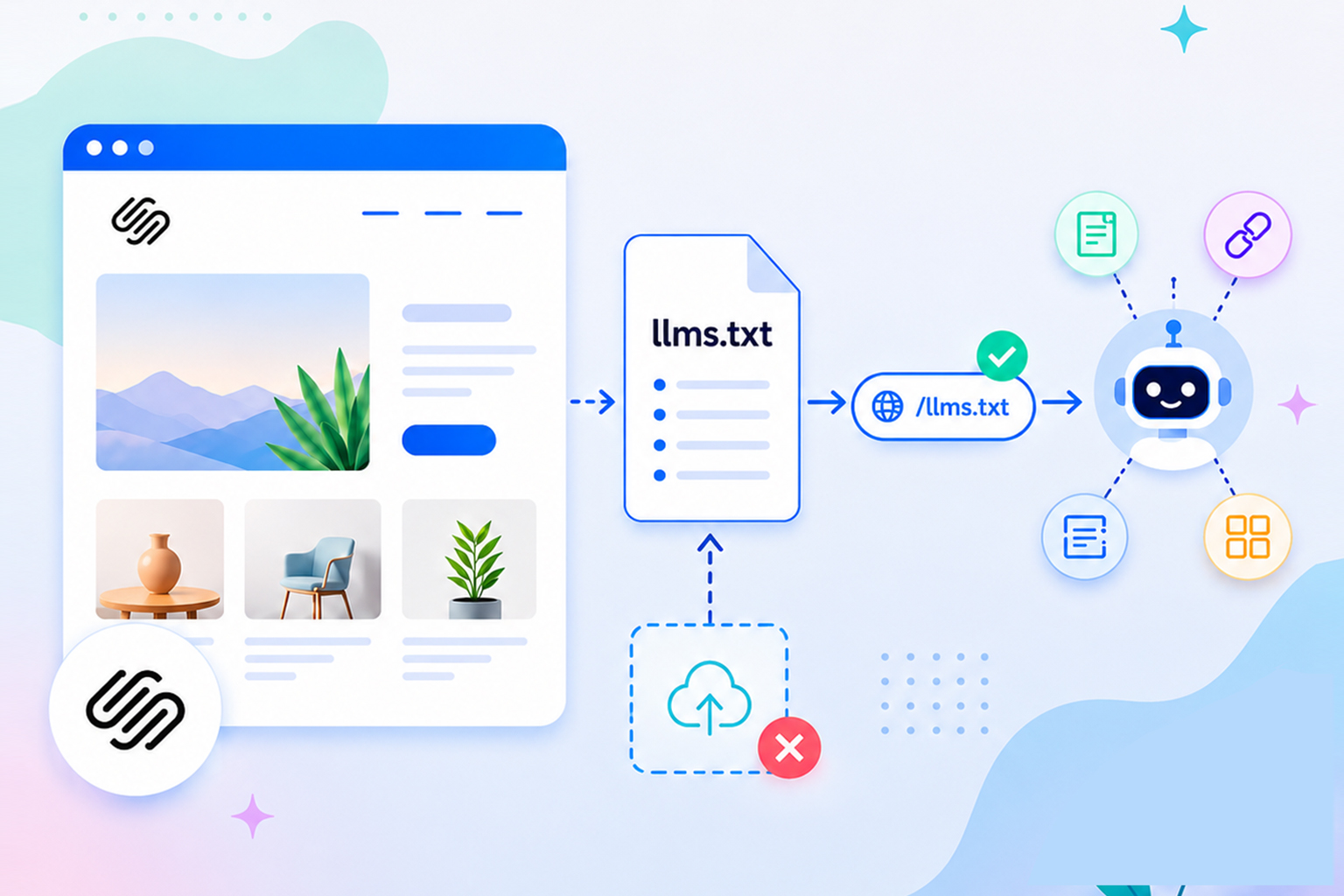
Website owners are increasingly looking for ways to make their content easier to organize and reference beyond traditional search engines. One proposal gaining attention is llms.txt, a simple Markdown file that highlights a website’s most important pages and documentation for AI systems and other automated tools.
If you’ve searched for a Squarespace llms.txt solution, you’ve likely found that Squarespace doesn’t currently support publishing a file directly at /llms.txt. Fortunately, there are practical workarounds that let you add llms.txt to Squarespace within the platform’s current limitations.
In this guide, you’ll learn what an llms.txt file is, how to create an llms.txt for Squarespace, explore practical setup methods, validate your file, and follow best practices for Squarespace AI search optimization.
Quick Steps to Squarespace llms.txt Setup
- Create your
llms.txtfile in Markdown format with links to your website’s most important pages and resources. - Squarespace doesn’t currently support uploading a file directly to the root directory
(/llms.txt). - Publish the file on your Squarespace site or host it externally, then use URL Mapping or redirects where appropriate for easier access.
- Verify that the published file is publicly accessible, uses valid Markdown, and contains working, up-to-date links.
- Treat llms.txt as an optional organizational resource, and combine it with structured data, quality content, and good site architecture as part of your overall Squarespace website optimization.
What Is an llms.txt File?
Think of an llms.txt file as a curated index of the most important pages on your website. Instead of leaving AI systems to navigate your entire site on their own, it highlights the resources you consider most valuable in a simple Markdown format.
The proposed specification recommends placing the file at the root of your website, typically:
https://example.com/llms.txt
Unlike robots.txt, which provides crawling instructions, or an XML sitemap that attempts to list all indexable pages, an llms.txt file focuses on quality over quantity. It typically includes the content that website owners consider most useful, such as:
- A short description of the website
- Links to important documentation or guides
- Product pages
- Knowledge base articles
- FAQs
- Contact or support information
Because the format uses Markdown, it’s easy for both humans and machines to read. It’s worth noting that llms.txt is currently an emerging proposal rather than an official web standard, and there is no universal requirement for AI systems to use it.
Nevertheless, many developers and website owners are experimenting with the format as part of broader AI content preparation.
How is llms.txt different from robots.txt and XML sitemaps?
Although these files can exist on the same website, they serve different purposes. Understanding the distinction helps clarify where an llms.txt file fits into your website’s overall structure.
| File | Purpose | Typical Location |
|---|---|---|
| robots.txt | Gives crawling instructions to web crawlers | /robots.txt |
| XML Sitemap | Lists important website URLs for search engines | /sitemap.xml |
| llms.txt | Curated list of important website resources | /llms.txt (recommended location) |
Does Squarespace Support an llms.txt File?
Squarespace does not provide native support for uploading arbitrary files directly to your website’s root directory.
This means you cannot simply upload:
yourdomain.com/llms.txt
the same way you might on a self-hosted WordPress website or another CMS with file access. This is the primary challenge when planning a Squarespace llms.txt setup.
Instead, you’ll need to publish the file elsewhere on your website and, where appropriate, use URL Mapping or redirects to create a cleaner path.
How to Create an llms.txt File for Squarespace
The good news is that creating the document itself is straightforward.
Because llms.txt uses Markdown, you only need a plain text editor.
A simple Squarespace llms.txt example could look like this:
# Example Website
> Resources about image optimization and structured data.

## Guides
- https://example.com/blog/image-optimization
- https://example.com/blog/schema-markup

## Documentation
- https://example.com/docs/getting-started

## Contact
- https://example.com/contact
A typical llms.txt file includes:
- Website title
- Brief description
- Links to important pages
- Documentation
- Product resources
- Support pages
The goal isn’t to include every URL on your website but to organize your most valuable content in a clear, readable structure.
Step-by-Step Guide to Adding an llms.txt File in Squarespace
Although you can’t upload a root-level file directly, you can still add llms.txt to Squarespace using a practical workflow.
Step 1: Create the Markdown File
Save your document as:
llms.txt
using UTF-8 encoding.
Some website owners prefer using a Squarespace llms.txt generator to automatically create the initial Markdown file. Even if you use one, it’s a good idea to review and edit the output before publishing.
Step 2: Upload or Publish the Content
There are several approaches depending on your website setup.
Some website owners:
- Upload the file as a downloadable asset.
- Publish the Markdown content on a dedicated page.
- Host the file externally if they manage another server.
Make sure the published file or redirected URL returns an HTTP 200 status code. Each approach has trade-offs, but all allow visitors and developers to access the document.
Step 3: Create a Cleaner URL
Squarespace allows URL Mappings through its developer settings. Depending on your setup, you may be able to redirect:
/llms.txt
to another published location. While this isn’t the same as hosting a true root-level /llms.txt file, it creates a cleaner and more predictable URL for visitors and tools to access your published document.
Always test the final URL after publishing to ensure it loads correctly.
Squarespace llms.txt Setup Best Practices
Whether you’re publishing your first file or updating an existing one, consistency matters more than length.
A good Squarespace llms.txt setup generally follows these practices:
1. Keep the File Curated
Only include pages that provide lasting value, such as documentation, product guides, tutorials, and help resources. Avoid automatically listing every page on your website.
2. Update It Regularly
If your documentation changes or you publish new cornerstone content, update the file accordingly. Outdated links reduce the usefulness of any curated resource.
3. Use Descriptive Headings
Organize links into logical sections such as:
- Documentation
- Products
- Blog Guides
- FAQs
- Support
This improves readability for both humans and software that parses Markdown.
4. Include Canonical URLs
Always link to the preferred version of each page instead of duplicate URLs or tracking links.
How to Validate a Squarespace llms.txt
After publishing your document, take a few minutes to verify everything works correctly. To validate a Squarespace llms.txt, check that:
- The URL is publicly accessible.
- All links return HTTP 200 responses.
- The Markdown formatting renders correctly.
- Internal links point to canonical pages.
- There are no broken or redirected URLs.
- The file is updated whenever important content changes.
You can also review the Markdown manually using common Markdown editors or validators before publishing. If you have redirected /llms.txt, verify that the redirect returns the expected destination instead of a 404 or redirect loop.
Does an llms.txt File Improve AI Visibility?
This is one of the most common questions surrounding the format. At present, llms.txt is a proposed specification, and no publicly confirmed evidence suggests that simply publishing an llms.txt file improves rankings or visibility in AI-powered search experiences.
Because of this, it’s best to view the document as an optional organizational resource rather than a guaranteed optimization technique.
If your goal is improving Squarespace AI visibility, it’s still important to focus on broader website quality signals, including:
- Well-structured content
- Clear page hierarchy
- Helpful documentation
- Accurate structured data
- Logical internal linking
- Fast-loading pages
- Consistently updated content
These practices benefit both traditional search engines and users while making your content easier to navigate and understand.
How to Improve Squarespace AI Visibility Beyond llms.txt
An llms.txt file is only one small part of preparing content for modern search experiences. For stronger Squarespace AI search optimization, consider improving the overall quality and accessibility of your website.
Publish Comprehensive Content
Create articles that answer complete questions instead of targeting only individual keywords. Well-organized headings, examples, and FAQs make information easier to follow.
Use Structured Data
Schema markup provides explicit information about products, organizations, articles, FAQs, reviews, and other page types. Unlike llms.txt, structured data is already widely supported across search ecosystems.
Improve Internal Linking
Help both visitors and crawlers discover related content by connecting relevant pages. Strong internal linking also helps establish topical authority.
Keep Documentation Current
If your business publishes guides or technical documentation, review them regularly to ensure information stays accurate. Fresh, maintained resources are more useful than outdated ones.
Optimize Technical Performance
Fast-loading pages, mobile-friendly layouts, descriptive metadata, and accessible navigation contribute to a better overall experience.
Together, these improvements create a stronger technical foundation for both users and crawlers while making your content easier to discover, navigate, and understand.
Conclusion
As interest in AI-assisted search continues to grow, many website owners are exploring ways to better organize their online content. While a Squarespace llms.txt file is still based on an emerging proposal and the platform doesn’t support direct root-level hosting, you can still create and publish one using practical workarounds.
Although it isn’t a replacement for established practices like structured data, strong site architecture, and high-quality content, an llms.txt file can serve as a useful way to organize your most important website resources. When combined with broader SEO and technical best practices, it helps make your content easier to understand and navigate.
Frequently Asked Questions
Q1: What is a Squarespace llms.txt file?
A Squarespace llms.txt file is a Markdown document containing links to important pages on your website. Because Squarespace doesn’t currently support direct root-level file uploads, it typically requires an alternative publishing method.
Q2: Can I upload llms.txt directly to Squarespace?
No. Squarespace doesn’t currently provide native access to upload files directly to your website’s root directory.
Q3: How do I add llms.txt to Squarespace?
You can create the Markdown document, publish or upload it within Squarespace, and use URL Mapping or redirects where appropriate to make it easier to access.
Q4: Is llms.txt required for AI search optimization?
No. There is currently no requirement to publish an llms.txt file for AI-powered search or language models.
Q5: How do I validate a Squarespace llms.txt?
Check that the file is publicly accessible, uses valid Markdown formatting, contains working links, and is updated regularly as your website evolves.
Q6: Can I use a Squarespace llms.txt generator?
Yes. Several online tools can generate a Markdown document from your website’s content, though it’s recommended to review the output before publishing.
Q7: Is llms.txt the same as robots.txt?
No. Robots.txt provides crawling instructions for web crawlers, while llms.txt is intended as a curated guide to important website resources using Markdown.
Q8: Should I include every page on my website?
No. Most implementations focus on high-value resources such as documentation, product pages, guides, and FAQs instead of listing every available URL.










 Wix Schema
 Squarespace Schema
 BigCommerce Schema
 Shopify Schema
 Hubspot Schema
 Webflow Schema
 GoHighlevel Schema
 Duda Schema
 Weebly Schema
 ClickFunnel Schema